
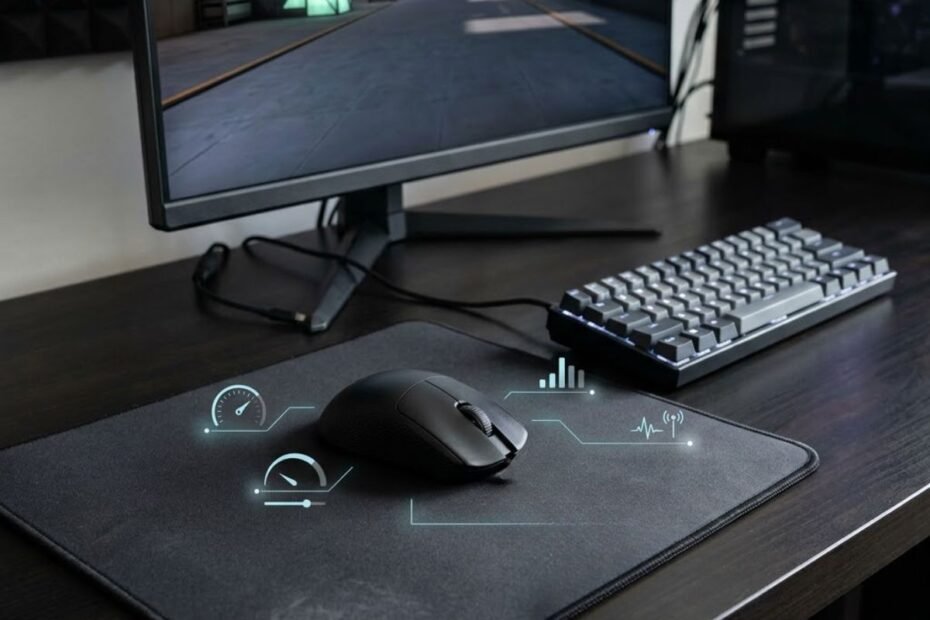
If you are looking for the best mouse settings for Valorant, start with 800 DPI, 0.30 to 0.40 in game sensitivity, 240 to 320 eDPI, and a 1000Hz polling rate. Treat these numbers as a practical baseline, not a universal formula. Your mouse space, movement habits, and ability to control the crosshair should determine whether you keep or adjust them.
Valorant rewards controlled first shots, disciplined crosshair placement, and repeatable micro adjustments. That makes consistency more useful than chasing the highest DPI, fastest sensitivity, or newest polling rate. This guide focuses on the settings you can actually change and how to test them without constantly rebuilding your aim.
GearTP Insight: Higher DPI does not automatically improve aim. Learn more in our gaming mouse guide.
What Are the Best Mouse Settings for Valorant?
A practical starting setup for most Valorant players is 800 DPI, 0.30 to 0.40 sensitivity, 240 to 320 eDPI, 1000Hz polling rate, and Windows pointer acceleration turned off. These settings give you a stable baseline without forcing you into an extreme low or high sensitivity setup.
The table below summarizes the recommended starting point:
| Setting | Starting Point | Purpose |
|---|---|---|
| DPI | 800 | Simple, stable baseline |
| In game sensitivity | 0.30 to 0.40 | Controlled camera movement |
| eDPI | 240 to 320 | Useful effective sensitivity reference |
| Polling rate | 1000Hz | Practical responsiveness baseline |
| Enhance Pointer Precision | Off | Avoid Windows pointer acceleration |
This baseline is intentionally conservative. It gives new and returning players a reasonable setup to test before making small changes based on real aim behavior.
Use this checklist before changing anything else:
- DPI: Start at 800 and keep it fixed while testing sensitivity.
- Sensitivity: Begin at 0.30 to 0.40 and adjust gradually.
- eDPI: Calculate it from DPI multiplied by in game sensitivity.
- Polling rate: Use 1000Hz as the baseline and test higher rates only if your system is stable.
- Windows acceleration: Turn off Enhance Pointer Precision for a more predictable desktop input configuration.
Once these settings are stable, resist changing several variables at the same time. A controlled baseline makes it much easier to identify what is actually helping your aim.
What DPI Should You Use for Valorant?
800 DPI is the simplest starting point for most Valorant players, while 400 DPI and 1600 DPI can work equally well when paired with an appropriate in game sensitivity. DPI by itself does not determine whether your aim is good. It changes the scale at which physical mouse movement is translated into pointer movement.
GearTP’s broader FPS mouse guide also treats 800 DPI as a balanced starting point rather than claiming that higher DPI automatically produces better aim. Read the FPS gaming mouse guide if you want the hardware side of the setup explained separately.
Is 400 DPI Good for Valorant?
Yes, 400 DPI is still a perfectly usable Valorant setting, especially for players who prefer traditional low sensitivity. Because the final feel depends on both DPI and in game sensitivity, 400 DPI can produce the same eDPI as 800 or 1600 DPI with the appropriate sensitivity value.
The main reason to choose 400 DPI is preference, not a guaranteed accuracy advantage. Some players like the slower physical movement associated with lower DPI, while others prefer a higher DPI value and lower in game sensitivity.
400 DPI is therefore a valid option, but it should be judged by the resulting eDPI and how consistently you can control the crosshair.
Is 800 DPI Good for Valorant?
Yes, 800 DPI is one of the easiest starting points for Valorant because it gives you a familiar middle ground for adjusting in game sensitivity. It also makes common sensitivity calculations simple, such as 800 DPI at 0.30 sensitivity producing 240 eDPI.
The advantage of 800 DPI is practical rather than magical. It gives you a stable reference point, and you can change the in game sensitivity without needing extreme decimal values.
For a player who has no existing preference, 800 DPI is the most straightforward DPI to test first.
Is 1600 DPI Good for Valorant?
Yes, 1600 DPI can work very well in Valorant when the in game sensitivity is reduced to keep the same effective sensitivity. For example, 1600 DPI at 0.15 sensitivity produces 240 eDPI, the same effective sensitivity as 800 DPI at 0.30.
There is no need to choose 1600 DPI simply because it is a larger number. If you prefer the feel of a higher DPI setting, use it consistently and evaluate the resulting eDPI.
1600 DPI is a valid alternative to 800 DPI, but it is not inherently more accurate.
The table below compares common DPI choices without treating one value as universally superior:
| DPI | Typical Approach | Best Reason to Choose It |
|---|---|---|
| 400 | Lower DPI | You already prefer traditional low sensitivity. |
| 800 | Balanced baseline | You want a simple starting point. |
| 1600 | Higher DPI with lower sensitivity | You prefer this input feel and want the same eDPI with lower in game sensitivity. |
The important takeaway is that DPI is only one part of the setup. Choose a DPI you can keep consistent, then use sensitivity and eDPI to control the final aiming speed.
What Is the Best Sensitivity for Valorant?
There is no single sensitivity that is best for every Valorant player, but 0.30 to 0.40 at 800 DPI is a practical starting range for players who do not know where to begin. That range equals 240 to 320 eDPI and provides enough control for precise adjustments without making normal turns excessively demanding.
What Is a Good Low Sensitivity for Valorant?
Low sensitivity can be a good choice if you have enough mouse space and prefer larger arm movements for precise aiming. Lower eDPI gives you more physical mouse travel for a given in game rotation, which can make deliberate corrections feel easier for some players.
Do not interpret low sensitivity as automatically better. If your mousepad is too small or you repeatedly run out of movement space, an excessively low setup can become restrictive.
For a deeper explanation of this specific aiming style, see GearTP’s low sensitivity aiming in Valorant guide.
Low sensitivity is therefore best treated as an option for players who value controlled movement and have the physical space to use it comfortably.
What Is a Balanced Sensitivity for Valorant?
A balanced starting sensitivity sits around 240 to 320 eDPI, which equals 0.30 to 0.40 sensitivity at 800 DPI. This range is useful because it leaves enough movement speed for turning while keeping the effective sensitivity moderate.
The point is not to hit a specific number perfectly. A setting of 240 eDPI can feel very different from 320 eDPI, and both can be reasonable depending on your control and available space.
A balanced range gives you a practical place to start before you decide whether your setup needs to move lower or higher.
What About High Sensitivity?
High sensitivity can work for players who prefer compact wrist movements or have limited desk space, but it demands stronger stopping control. Higher eDPI makes the crosshair travel farther with smaller physical movements, which can be useful for quick turns but less forgiving during tiny corrections.
If you frequently overflick or struggle to stop precisely on small targets, high sensitivity may be worth reducing. If you repeatedly feel restricted during turns, a modest increase may make more sense.
High sensitivity is a legitimate playstyle, but it should be selected because you can control it, not because faster numbers look more competitive.
The table below gives practical eDPI starting zones rather than rigid rules:
| eDPI | General Feel | Consider It If |
|---|---|---|
| 160 to 220 | Low | You prefer larger arm movements and have enough desk space. |
| 220 to 320 | Balanced | You want a practical middle ground for control and movement. |
| 320 to 400 | Faster | You prefer shorter mouse movements and can stop accurately. |
| 400+ | High | You already control fast sensitivity consistently. |
These zones are useful for testing, not for labeling one style as objectively superior. Your ability to stop, correct, and repeat the same movement matters more than the category name.
What Is eDPI and How Do You Calculate It?
eDPI is your mouse DPI multiplied by your Valorant in game sensitivity, giving you a simple way to compare effective sensitivity across different DPI settings. The formula is straightforward: eDPI = DPI × in game sensitivity.
“A computer mouse is a hand-held pointing device that detects two-dimensional motion relative to a surface.”
The definition matters here because your physical mouse movement is the input being translated into movement on screen. In Valorant, eDPI helps you compare the final sensitivity without getting distracted by the DPI number alone.
The table below shows equivalent eDPI examples:
| DPI | In Game Sensitivity | eDPI |
|---|---|---|
| 400 | 0.60 | 240 |
| 800 | 0.30 | 240 |
| 1600 | 0.15 | 240 |
| 800 | 0.40 | 320 |
| 1600 | 0.20 | 320 |
These examples show why comparing DPI alone can be misleading. Different DPI values can produce the same effective sensitivity when the in game setting is adjusted proportionally.
Why Is eDPI More Useful Than DPI Alone?
eDPI is more useful than DPI alone because it accounts for both your mouse’s DPI and the sensitivity used inside Valorant. Someone using 400 DPI and someone using 800 DPI can have nearly the same effective sensitivity if their in game values are adjusted accordingly.
This makes eDPI useful when comparing settings, testing a new mouse, or translating a sensitivity from one DPI to another.
Use eDPI as a comparison tool, not as a score that determines whether your aim is good.
What eDPI Should You Start With?
If you have no established preference, 240 to 320 eDPI is a practical starting zone for testing. Players who need more physical control can test lower, while players who feel restricted can move higher in small increments.
A useful starting range is better than pretending there is one scientifically perfect eDPI for every player. The right setting is the one that remains controllable when you are flicking, clearing angles, and making small corrections under pressure.
Start within a reasonable range, then use your actual movement problems to decide whether to adjust it.
What Polling Rate Should You Use for Valorant?
1000Hz is a practical baseline for most Valorant players, while 4000Hz and 8000Hz are optional higher polling rates for systems that can run them reliably. A 1000Hz mouse reports at 1ms intervals, while higher polling rates reduce the theoretical interval further.
GearTP has a dedicated best polling rate for Valorant guide for a deeper discussion. This article only covers the part you need to choose a sensible setting for your overall mouse configuration.
The table below compares common polling rates by reporting interval:
| Polling Rate | Report Interval | Practical Position |
|---|---|---|
| 500Hz | 2ms | Usable, especially on older gaming mice. |
| 1000Hz | 1ms | Practical baseline for most players. |
| 4000Hz | 0.25ms | Optional higher rate setup. |
| 8000Hz | 0.125ms | Enthusiast setting that needs a suitable system. |
The report intervals are mathematical conversions from the polling rate, not claims about a specific mouse model.
Is 1000Hz Enough for Valorant?
Yes, 1000Hz is enough for competitive Valorant and is the most sensible baseline for most players. It provides frequent mouse reports without requiring you to chase a higher number simply because it is available.
If your aim is inconsistent at 1000Hz, increasing polling rate is unlikely to solve the underlying issue. Sensitivity, crosshair placement, movement control, and practice should be checked first.
For a stable everyday competitive setup, 1000Hz is a strong default.
Should You Use 4000Hz or 8000Hz?
Use 4000Hz or 8000Hz only if your mouse and PC handle the higher rate consistently and you can actually prefer the resulting feel. Higher polling rates reduce the time between reports, but they do not improve mechanical skill or guarantee better aim.
Higher polling can also make system behavior and battery management more relevant, especially with wireless mice. If you notice instability, stuttering, or a less consistent experience, return to 1000Hz and compare again.
Higher polling rates are therefore optional performance settings, not mandatory Valorant upgrades.
Does Higher Polling Rate Improve Aim?
Higher polling rate can change how frequently movement data is reported, but it does not directly improve your aiming mechanics. Any practical benefit depends on the entire system, including the mouse, game, display, and PC.
A smoother technical signal is not the same thing as a better flick. You still need accurate crosshair placement, controlled stopping, and repeatable movement.
Judge polling rate by real consistency rather than by the number printed on the mouse box.
What Windows Mouse Settings Should You Use for Valorant?
Turn off Windows Enhance Pointer Precision if you want to avoid pointer acceleration, and keep your Windows mouse configuration consistent instead of repeatedly changing it. Microsoft documents Enhance Pointer Precision as a Windows mouse behavior that changes pointer movement behavior, while Riot’s current Valorant configuration has also changed over time.
Should Enhance Pointer Precision Be On or Off?
For a consistent competitive FPS setup, turn Enhance Pointer Precision off. This avoids adding Windows pointer acceleration to the general mouse configuration you use around the game.
Microsoft’s current Windows support documentation explains where Enhance Pointer Precision is configured. See Microsoft’s Windows mouse settings guide for the current menu path.
The goal is not that Windows acceleration makes every player inaccurate. The goal is to remove a variable that can make mouse behavior harder to reproduce consistently.
What About Windows Pointer Speed?
6/11 is a sensible neutral Windows baseline for players who want a consistent traditional mouse configuration, but it should not be treated as a Valorant sensitivity setting. Your in game sensitivity and eDPI remain the more relevant numbers for Valorant aim.
Keep the Windows setting stable while testing your game sensitivity. Constantly changing both Windows and Valorant settings makes it difficult to identify what actually changed your aim.
Use Windows pointer speed as a consistency choice, not as a way to compensate for a poorly chosen in game sensitivity.
What Happened to Raw Input Buffer in Valorant?
Raw Input Buffer is no longer a configurable PC setting in Valorant. Riot removed the setting in Patch 11.06 and stated that it is now always enabled.
This matters because older Valorant guides still tell players to enable Raw Input Buffer manually. That advice is outdated for the current PC version.
Riot previously introduced Raw Input Buffer as a performance option for input processing, including a specific benefit for 8000Hz mice, but the current game no longer exposes the toggle.
For an up to date setup, do not waste time looking for the old toggle. Focus on the settings that are still configurable.
The table below separates current Windows choices from the outdated Valorant toggle:
| Setting | Recommendation | Reason |
|---|---|---|
| Enhance Pointer Precision | Off | Avoid Windows pointer acceleration. |
| Windows pointer speed | 6/11 baseline | Keep a consistent neutral style configuration. |
| Raw Input Buffer | Always enabled in current PC Valorant | Riot removed the configurable toggle in Patch 11.06. |
The important correction is simple: current Valorant players should not follow older instructions telling them to manually enable Raw Input Buffer.
How Do You Find Your Best Valorant Sensitivity?
The most reliable way to find your best Valorant sensitivity is to start from a reasonable eDPI, test it repeatedly in the Range, then make small changes only when the same aiming problem keeps appearing. This is more useful than changing sensitivity after one bad match or copying a professional player’s number.
How Should You Test a New Sensitivity?
Test one sensitivity at a time and evaluate the same movements across multiple practice sessions. The goal is to identify repeatable problems rather than react to random misses.
The following process can help you test a new Valorant sensitivity:
- Choose a baseline: Start around 240 to 320 eDPI if you do not already have a preferred range.
- Test flicks: Move between stationary targets and watch for repeated overflicking or underflicking.
- Test micro adjustments: Check whether small crosshair corrections feel controlled at longer distances.
- Test turning space: Use a comfortable swipe and see whether normal turns require excessive mouse travel.
- Play real matches: Validate the setting beyond the practice environment.
- Change one variable: If a consistent problem remains, adjust sensitivity slightly instead of changing DPI, polling rate, and Windows settings together.
This process turns sensitivity testing into a controlled comparison instead of a cycle of random changes.
What Does the 180 Degree Test Tell You?
The 180 degree test is a practical starting diagnostic for whether your sensitivity fits your available mouse movement space, not a test that reveals one perfect sensitivity number. A comfortable swipe that produces a controllable turn can help you identify whether your current setup feels excessively fast or restrictive.
Place the mouse near one side of the pad, make a natural swipe, and observe the resulting turn. If you consistently rotate far beyond what you intended, a lower sensitivity may be worth testing. If you cannot turn comfortably without lifting the mouse repeatedly, a modest increase may make more sense.
The table below shows how to interpret common test results:
| Test Result | Possible Interpretation | Suggested Action |
|---|---|---|
| Far above 180 degrees | Sensitivity may feel too fast. | Test a small eDPI reduction. |
| Near 180 degrees | Movement may be reasonably balanced. | Continue testing in matches. |
| Far below 180 degrees | Sensitivity may feel restrictive. | Test a small eDPI increase. |
| Uncomfortable movement | The setup may not fit your physical space. | Review sensitivity and available mouse travel. |
The test is useful because it connects a numerical sensitivity setting to the physical movement you actually have available. It should remain a starting diagnostic rather than a hard target.
How Do You Know When to Stop Changing Sensitivity?
Stop changing sensitivity when the same setting feels controllable across practice and real matches and you no longer have a consistent mechanical problem that points to the sensitivity itself. A bad game is not enough evidence that your settings are wrong.
Give your setup time to become familiar. If you keep changing the number whenever your aim feels off, you lose the ability to separate a temporary performance dip from a genuine settings problem.
Stable practice is part of the testing method, not something you do only after finding the perfect setting.
Should You Copy Valorant Pro Mouse Settings?
Use pro settings as reference points, not prescriptions. Professional settings can show how different DPI and sensitivity combinations are used, but they cannot account for your mouse space, hand movement, or current mechanics.
What Can Pro Settings Actually Tell You?
Pro settings are most useful for showing that competitive players use a range of valid configurations rather than one universal setup. They can help you understand how DPI and sensitivity combine, especially when converted into eDPI.
They should not be used as proof that a particular number causes better aim. A professional player’s result comes from the entire player and system, not from sensitivity alone.
If you use pro settings, compare the effective sensitivity first and then test whether it fits your own physical movement.
Why Should You Avoid Copying a Pro Exactly?
Copying a pro exactly ignores the physical and mechanical differences between players. A setting that works for one player may feel too fast, too slow, or simply uncomfortable for another.
Hand movement, available desk space, mouse shape, grip, and established mechanics all affect how the same eDPI feels. Even two players using identical mice can need different settings.
The useful lesson from pro settings is the range of possibilities, not the idea that one player has discovered the correct number for everyone.
What About Individual Pro Settings?
If you include individual pro settings, treat the numbers as time sensitive reference data and verify them against a current source before publishing. Do not present an unverified range as a permanent fact.
For that reason, this guide does not use the older TenZ, Chronicle, yay, or aspas ranges from the previous version of the article as universal recommendations. The current purpose of the section is to explain how to interpret pro settings, not to turn stale player data into a settings prescription.
This keeps the article useful even when players change teams, mice, or sensitivity values.
What Mouse Settings Should Beginners Use in Valorant?
Beginners can start with 800 DPI, 0.30 to 0.40 sensitivity, 240 to 320 eDPI, and 1000Hz polling rate, then keep the setup stable while learning basic aim mechanics. New players usually need a consistent baseline more than they need a highly customized configuration.
The table below gives a simple beginner preset:
| Setting | Starting Point | Why |
|---|---|---|
| DPI | 800 | Simple baseline for testing. |
| In game sensitivity | 0.30 to 0.40 | Balanced starting movement. |
| eDPI | 240 to 320 | Useful starting zone. |
| Polling rate | 1000Hz | Practical responsiveness baseline. |
| Enhance Pointer Precision | Off | Reduces Windows acceleration as a variable. |
This preset is intentionally simple. It gives beginners a stable setup without requiring them to understand every possible mouse setting before they can start practicing.
How Long Should Beginners Keep One Sensitivity?
Beginners should keep a sensitivity long enough to evaluate repeated movement patterns instead of changing it after every frustrating game. There is no universal number of hours that guarantees adaptation, but a stable practice period gives you better information than rapid switching.
Use the Range and normal matches to look for recurring issues. If your crosshair repeatedly overshoots, undercorrects, or feels physically restricted, then consider a small change.
The purpose of a beginner setup is to create a stable reference point from which future adjustments can be judged.
Common Valorant Mouse Setting Mistakes
The most damaging mouse setting mistakes are usually inconsistent experimentation, copying numbers without understanding eDPI, and blaming sensitivity for mechanical problems that have another cause. A good setup cannot replace crosshair placement, positioning, timing, or practice.
The table below highlights the mistakes worth avoiding:
| Mistake | Why It Causes Problems | Better Approach |
|---|---|---|
| Changing sensitivity constantly | You cannot evaluate adaptation reliably. | Make small changes only when a pattern persists. |
| Copying DPI alone | DPI does not show final effective sensitivity. | Compare eDPI. |
| Chasing higher polling rate | A higher number does not fix weak mechanics. | Use 1000Hz first and test higher rates only if needed. |
| Changing several settings at once | You cannot identify which change mattered. | Change one variable at a time. |
| Blaming every miss on sensitivity | Positioning and crosshair placement can be the real issue. | Review the full gunfight before changing settings. |
Changing Sensitivity After Every Bad Match
Changing sensitivity after every bad match makes it harder to build a stable movement pattern and even harder to determine whether the setting was actually the problem. Performance naturally fluctuates from match to match.
Only change sensitivity when you can identify a repeated movement issue, such as consistent overflicking or an inability to turn comfortably within your available space.
A stable setting gives you a better foundation for judging your actual mechanical progress.
Copying DPI Without Checking eDPI
Copying a player’s DPI without copying or calculating the corresponding in game sensitivity can produce a completely different effective sensitivity. DPI is only one part of the equation.
Always calculate eDPI when translating another player’s setup. This keeps the comparison meaningful and prevents a large DPI number from being mistaken for a better setup.
eDPI is the simplest way to keep this mistake from happening.
Blaming Mouse Settings for Every Aim Problem
Mouse settings are only one part of aim performance, so changing them cannot fix every missed shot. Poor crosshair placement, bad positioning, rushed peeks, inconsistent stopping, and weak target selection can all create the appearance of a sensitivity problem.
Before changing your settings, ask whether the same mistake appears repeatedly when the crosshair starts from the correct position. If not, changing sensitivity may simply create another variable without solving the real issue.
Good settings support good mechanics, but they do not replace them.
Frequently Asked Questions About Valorant Mouse Settings
These answers cover the most useful remaining questions without repeating the main sections word for word.
What is the best DPI for Valorant?
800 DPI is the simplest starting point for most players, but 400 and 1600 DPI can also work when sensitivity is adjusted to produce a comfortable eDPI.
Is 800 DPI good for Valorant?
Yes, 800 DPI is a practical baseline because it makes sensitivity adjustment and eDPI calculations straightforward.
Is 1600 DPI good for Valorant?
Yes, 1600 DPI works well when paired with lower in game sensitivity, and it can produce the same eDPI as a lower DPI setup.
What is the best sensitivity for Valorant?
There is no universal best sensitivity, but 0.30 to 0.40 at 800 DPI is a practical starting range for players who need a baseline.
What is a good eDPI for Valorant?
240 to 320 eDPI is a useful starting zone, while lower or higher values can work when they match your movement space and control.
Is low sensitivity better for Valorant?
Low sensitivity can make controlled arm movements easier for some players, but it is not automatically better and can become restrictive without enough mouse space.
Is 1000Hz polling rate enough for Valorant?
Yes, 1000Hz is enough for competitive Valorant and is a sensible baseline for most players.
Should I use 4000Hz or 8000Hz for Valorant?
You can test 4000Hz or 8000Hz if your system and mouse support them reliably, but higher polling is optional rather than necessary.
Should I turn off Enhance Pointer Precision?
Yes, turn it off if you want to remove Windows pointer acceleration as a variable in your competitive mouse setup.
What happened to Raw Input Buffer in Valorant?
Riot removed the configurable Raw Input Buffer setting from PC Valorant in Patch 11.06 and made it always enabled.
Should I copy a Valorant pro’s sensitivity?
Use pro settings as reference data rather than copying them exactly because your movement habits and physical setup are different.
How often should I change my Valorant sensitivity?
Change it only when repeated testing reveals a consistent problem that the current setting is likely causing.
These answers reinforce the main principle of the guide: a good Valorant setup is a stable starting point that you can test and refine, not a number you need to change every time your performance fluctuates.
Final Verdict: The Best Valorant Mouse Settings
Start with 800 DPI, 0.30 to 0.40 sensitivity, 240 to 320 eDPI, 1000Hz polling rate, and Enhance Pointer Precision turned off. Keep those settings stable while you test your aim, then make small adjustments only when a repeated problem gives you a reason to change them.
The most important distinction is between a starting point and a universal best setting. There is no single sensitivity that can account for every player’s hand movement, desk space, mouse control, and mechanics.
If you are still choosing the hardware for your setup, GearTP’s best gaming mouse for Valorant guide can help with the mouse itself. Once the hardware is comfortable, return to the settings above and optimize the variables you can actually control.
The goal is simple: find a mouse configuration that feels predictable enough to disappear while you focus on the fight.