
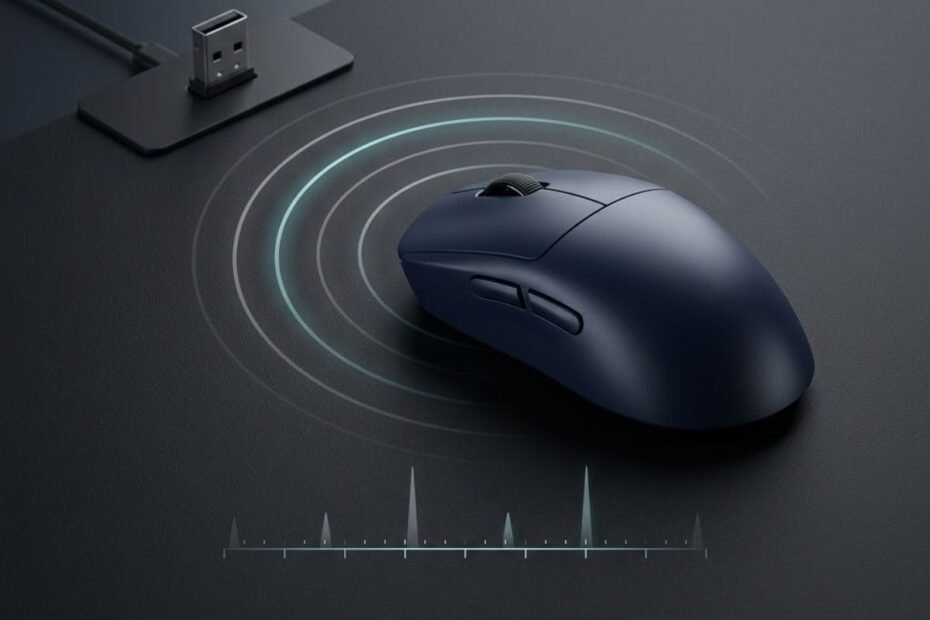
Modern wireless gaming mice can deliver very low latency, so using a wireless connection does not automatically mean noticeable input delay. The important distinction is between wireless latency, mouse processing latency, and the total time it takes for an input to become a visible response on screen.
For FPS players, this distinction matters because the term “mouse latency” can describe several different stages of the input process. A mouse may have a fast wireless connection but still have other sources of delay elsewhere in the input path. Understanding what wireless latency actually measures makes it easier to interpret latency claims without treating every millisecond as the same thing.
What Is Wireless Mouse Latency?
Wireless mouse latency is the delay associated with transmitting mouse input from the mouse to the computer through a wireless connection. It describes one part of the input path rather than the complete delay between moving or clicking the mouse and seeing the result on screen.
The following illustration shows where wireless latency fits within the broader mouse input process:
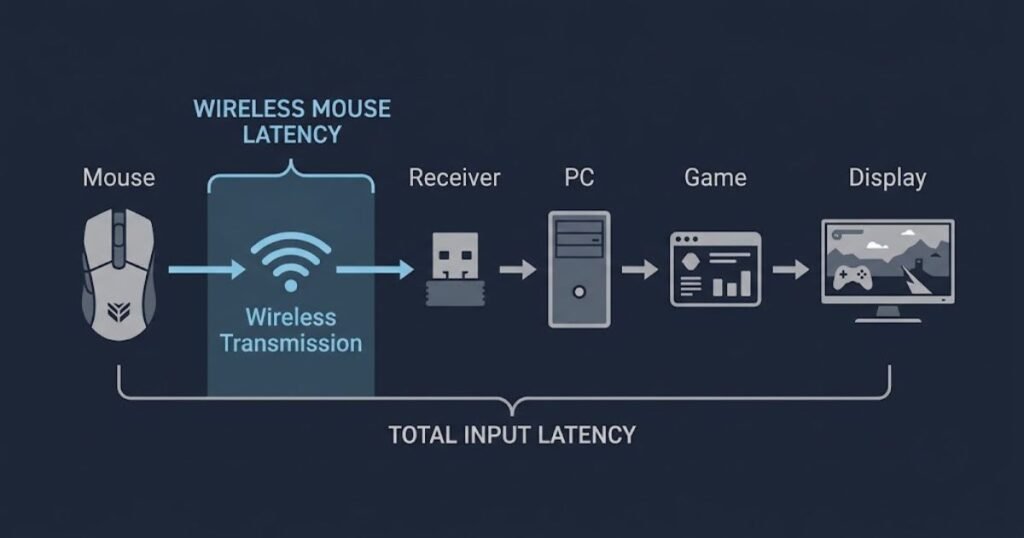
When you move a wireless mouse or press a button, the mouse has to detect and process that input before sending the resulting data to the computer. The wireless connection is responsible for carrying that information between the mouse and its receiver, which means wireless latency should be considered separately from other stages that can affect responsiveness.
How Wireless Latency Differs From Total Mouse Input Latency
Wireless latency refers specifically to the wireless communication portion of the input path, while total mouse input latency includes multiple stages before the final response reaches the player. Treating these terms as interchangeable can make a small wireless latency measurement appear more important than it actually is.
The table below separates wireless latency from other types of mouse delay:
| Latency Concept | What It Describes | Primary Scope |
|---|---|---|
| Wireless Latency | The delay associated with transmitting mouse data over the wireless connection. | Mouse to wireless receiver |
| Mouse Processing Latency | The time required for the mouse hardware to process detected movement or button input. | Inside the mouse |
| Click Latency | The response time associated with a physical button press being registered by the computer. | Button input |
| Sensor Latency | The delay associated with detecting and reporting physical mouse movement. | Movement input |
| Total Input Latency | The combined delay across the relevant input and display stages. | Mouse input to visible response |
The distinction is important because these measurements describe different parts of the system. A wireless mouse can have low wireless latency without every other stage of the input path having the same response time.
In other words, wireless latency should be viewed as one component of mouse responsiveness rather than a measurement of the entire gaming system.
Why Wireless Latency Is Not the Same as “Mouse Lag”
Wireless latency is not the same as mouse lag because noticeable lag can originate from several different parts of the input and display pipeline. A player may perceive delayed movement or clicks even when the wireless connection itself is performing normally.
This distinction also prevents a common mistake when comparing gaming mice. A latency number associated with the wireless connection does not automatically describe how quickly the entire system responds. Other factors can affect the final result, including mouse processing, input reporting, game processing, and display response.
For that reason, a wireless mouse should not be judged solely by whether it uses a wireless connection. The more useful question is how its wireless communication performs as one part of the complete input path.
Understanding this distinction provides the foundation for evaluating wireless mouse responsiveness without confusing wireless transmission latency with total input latency.
How Does a Wireless Mouse Send Input to Your PC?
A wireless mouse sends input to the PC by detecting movement or button actions, processing that input, transmitting the resulting data wirelessly, and passing it through the receiver to the computer. Understanding this path helps explain where wireless communication fits into the larger mouse response process without confusing it with total system latency.
This simplified diagram shows how mouse movement travels from physical input to the wireless receiver:
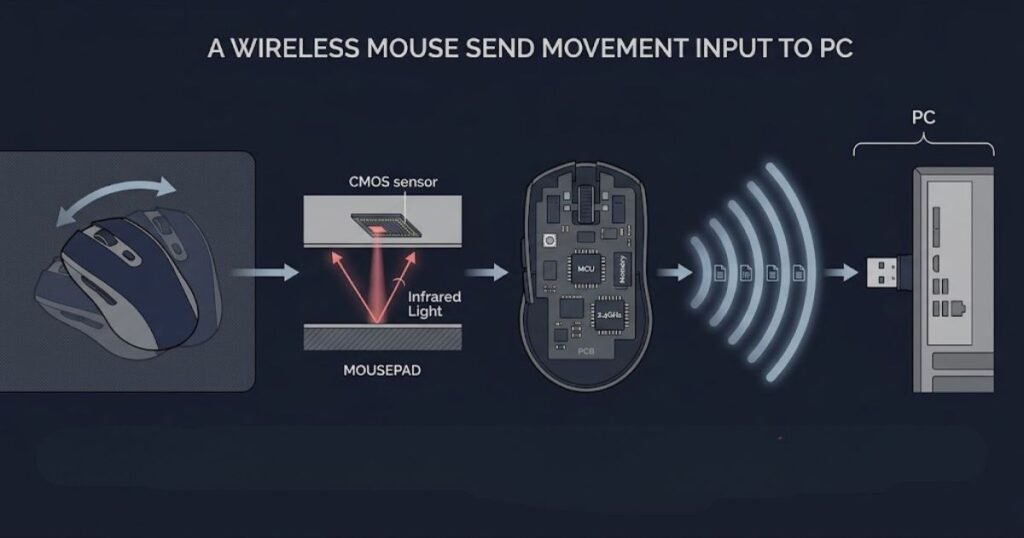
When you move the mouse, the sensor detects changes in position relative to the surface. When you press a button, the mouse detects the physical switch input. The mouse then processes the detected input before sending the relevant data through its wireless connection.
What Happens Between Mouse Movement and the Wireless Receiver?
Mouse movement reaches the wireless receiver only after the mouse has detected and processed the physical movement. The wireless connection therefore represents a transmission stage within the input path rather than the starting point of the process.
A simplified movement path looks like this:
Physical movement → Sensor detection → Mouse processing → Wireless transmission → Wireless receiver
The sensor is responsible for detecting movement, while the mouse’s internal electronics handle the processing required before that information can be transmitted. The wireless transmitter then sends the processed data to the receiver connected to the computer.
This distinction matters because a wireless mouse does not transmit raw physical movement directly to the PC. Several device-side operations happen before the receiver receives the information.
Once the receiver gets the transmitted data, the wireless portion of this path is complete. The receiver then passes the mouse input toward the computer, where additional processing takes place.
What Happens After the Receiver Reaches the PC?
The wireless receiver passes the mouse data to the PC, where the input continues through the computer and game before the player sees the resulting response. This means the receiver marks the end of the wireless transmission stage, not the end of total input latency.
A simplified path after the receiver is:
Wireless receiver → USB connection → PC → Game → Display
The exact response time after the receiver depends on factors outside the wireless transmission itself. The computer must process the incoming input, the game must respond to that input, and the display must present the resulting frame.
For this reason, a measurement of wireless latency should not be interpreted as a measurement of the entire mouse-to-screen response. The two describe different portions of the overall process.
This distinction also explains why a wireless mouse can have a fast connection while the complete system still has additional sources of input delay.
Why Click Latency and Sensor Latency Are Measured Separately
Click latency and sensor latency are measured separately because they describe different types of mouse input: button actions and physical movement. Combining them into a single measurement can hide meaningful differences in how a mouse responds to clicks versus movement.
RTINGS describes click latency as the time between a button press and the computer registering that click, while its sensor latency testing examines how quickly physical mouse movement is translated into position updates. Its testing methodology uses separate procedures for these two types of input. :contentReference[oaicite:0]{index=0}
For a click, the relevant path begins with the physical button action and ends when the computer registers the input. For movement, the relevant behavior begins with physical mouse movement and concerns how quickly the sensor’s movement data is reflected in the computer’s position updates.
These measurements therefore answer different questions. Click latency helps describe how quickly a button action is registered, while sensor latency helps describe how closely the mouse’s reported movement follows the physical movement of the device.
Separating these concepts makes wireless mouse testing easier to interpret. A latency result should always be understood in relation to the type of input being measured and the stage of the input path it represents.
The key point is that a wireless mouse does not have one single latency stage. Movement and clicks follow different device-side processes, while the wireless receiver represents only one stage before the input continues through the PC and game.
Does a Wireless Mouse Have More Latency Than a Wired Mouse?
A modern gaming mouse using a dedicated USB wireless receiver does not automatically have more noticeable latency than a wired mouse. Independent testing shows that many gaming mice using proprietary USB receivers can achieve latency performance comparable to wired connections, while Bluetooth generally produces higher latency. The connection technology therefore matters more than simply whether a mouse is labeled “wireless.”
The following comparison visual separates the connection types most relevant to wireless mouse latency:
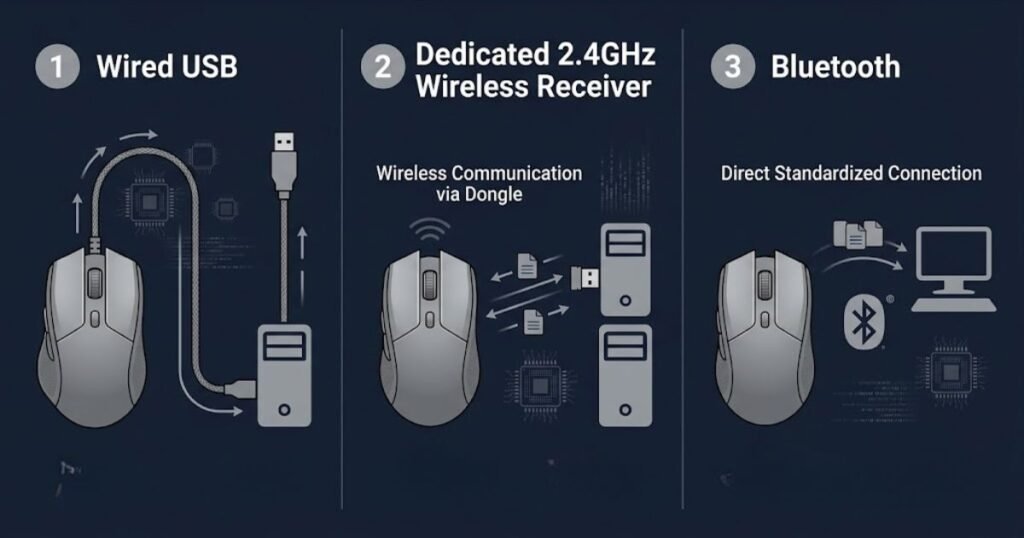
For FPS gaming, this distinction is important because “wireless” describes how the mouse connects to the computer, not how fast every wireless implementation performs. A dedicated gaming receiver and a Bluetooth connection can both be wireless while producing different latency results.
Why Dedicated 2.4GHz Wireless Can Be Fast Enough for FPS
Dedicated 2.4GHz wireless connections are designed to prioritize fast and consistent communication between the mouse and its receiver. Unlike general-purpose wireless connectivity, gaming implementations use a dedicated USB receiver that provides a direct connection path between the mouse and PC.
Independent testing from RTINGS finds that wired mice and wireless mice using proprietary USB receivers generally achieve the lowest click latency among the connection types they test. Their current testing also notes that advances in wireless technology mean many gaming mice using proprietary receivers can match or even outperform some wired models in measured latency. :contentReference[oaicite:0]{index=0}
That does not mean every 2.4GHz gaming mouse will have identical latency. Wireless performance still depends on the specific mouse, receiver implementation, firmware, and testing conditions. The useful conclusion is narrower: a dedicated wireless receiver is not inherently a high-latency connection.
For an FPS player, this makes modern dedicated wireless a legitimate low-latency connection option rather than a compromise that must automatically be accepted for the sake of removing a cable.
Why Bluetooth Is Different From Gaming Wireless Receivers
Bluetooth is designed for broader device compatibility and power efficiency, while dedicated gaming receivers prioritize low-latency communication. Both technologies are wireless, but they should not be treated as equivalent when evaluating a mouse for latency-sensitive gaming.
RTINGS’ current mouse latency testing reports that wireless mice using USB receivers generally have much lower click latency than Bluetooth connections, with Bluetooth producing the highest latency of the three connection types they test. :contentReference[oaicite:1]{index=1}
This difference is why a mouse having a wireless mode does not tell you enough about its expected responsiveness. You need to know which wireless connection the mouse uses and which mode is intended for gaming.
The table below compares the three connection types most relevant to mouse latency:
| Connection Type | Primary Use | Latency Relevance for FPS |
|---|---|---|
| Wired USB | Direct connection between the mouse and PC | Very high |
| Dedicated 2.4GHz Receiver | Low-latency wireless gaming | Very high |
| Bluetooth | General wireless connectivity and device compatibility | Lower priority for competitive FPS |
The important distinction is therefore not simply wired versus wireless. A dedicated 2.4GHz gaming receiver can provide the low-latency behavior expected from a gaming mouse, while Bluetooth is generally less suitable when minimizing latency is a priority.
For players comparing the practical differences between connection types, wired and wireless gaming mice also differ in areas beyond latency, including cable movement, power management, and setup flexibility.
Overall, modern gaming wireless should not be dismissed because of an assumption that wireless always introduces meaningful delay. The connection type and implementation are more useful indicators of latency performance than the word “wireless” alone.
What Causes Wireless Mouse Latency?
Wireless mouse latency can be affected by several stages, including mouse processing, wireless transmission conditions, receiver placement, and reporting behavior. The wireless signal is only one part of the process, so a delayed response should not automatically be attributed to the radio connection itself.
For practical troubleshooting, it helps to separate factors that can affect the wireless connection from factors that occur inside the mouse. This makes it easier to identify whether a responsiveness problem is actually related to wireless communication.
Wireless Transmission and Signal Conditions
Wireless transmission can become less consistent when the connection is affected by interference, obstructions, or other conditions that reduce the quality of communication between the mouse and receiver. A stable wireless link allows input data to reach the receiver consistently, while a poor connection can create interruptions or require data to be transmitted again.
Not every wireless environment produces the same result. Nearby wireless devices, physical obstructions, and the placement of the receiver can all influence connection quality. The important distinction is that interference is a potential cause of inconsistent wireless behavior, not proof that every wireless mouse will experience noticeable latency.
Logitech’s guidance for its wireless receivers recommends minimizing the distance between the mouse and receiver and avoiding metallic objects or consumer electronic devices between them. Its support guidance also recommends testing the receiver directly on the computer rather than through hubs, docks, or other intermediate connections when investigating interference issues. :contentReference[oaicite:1]{index=1}
Receiver Distance and Placement
Receiver placement can affect wireless connection quality, particularly when the receiver is positioned far from the mouse or separated by objects that interfere with the radio link. This is why some wireless gaming mice include a receiver extender that allows the receiver to be positioned closer to the mouse.
RTINGS’ mouse latency testing notes that USB receiver latency can increase as the receiver is moved farther away and recommends keeping the receiver as close to the mouse as possible when seeking the lowest possible latency. :contentReference[oaicite:2]{index=2}
That does not mean a receiver sitting slightly farther away will automatically create a noticeable delay. The practical concern is maintaining a strong and consistent connection under the conditions in which the mouse is actually being used.
Mouse Processing Happens Before Wireless Transmission
Some latency occurs inside the mouse before any data is transmitted wirelessly. The mouse must detect the physical input and process that information before its wireless system can send the resulting data to the receiver.
This matters because a fast wireless connection cannot remove delay that already exists earlier in the mouse’s processing chain. Wireless transmission should therefore be evaluated separately from sensor behavior, button processing, and other device-side operations.
The same principle applies when comparing different wireless mice. Two mice can use similar wireless connection methods while producing different overall latency because their internal hardware and firmware can process input differently.
Reporting Behavior Can Affect Responsiveness
Reporting behavior affects how frequently the mouse communicates updated input information to the computer, which can influence when a particular movement or click is reported. This is related to polling rate, but reporting behavior should not be confused with the wireless transmission itself.
A wireless mouse can therefore have a fast radio connection while still using a reporting configuration that changes how frequently new input data reaches the computer. The effect of reporting frequency is a separate part of the latency equation and should be considered alongside, rather than substituted for, wireless latency.
For that reason, a latency discussion that only looks at the wireless connection can miss other stages that affect how quickly updated mouse input reaches the PC.
The main factors that can affect wireless mouse latency include:
- Wireless transmission conditions: Interference, obstructions, and connection quality can affect how consistently data travels between the mouse and receiver.
- Receiver placement: Distance and physical positioning can influence the quality and consistency of the wireless link.
- Mouse processing: Input must be detected and processed inside the mouse before it can be transmitted.
- Reporting behavior: The frequency at which updated input is reported can affect when the computer receives new mouse data.
These factors show why wireless mouse latency should not be reduced to a single radio-related number. A responsive wireless mouse depends on the quality of its connection as well as the processing and reporting behavior that occur around it.
The table below shows where latency can enter the wireless mouse input path:
| Stage | What Happens | Why It Matters |
|---|---|---|
| Mouse Processing | The mouse detects and processes movement or button input before transmission. | Device-side processing can contribute to response time. |
| Wireless Transmission | Processed input data is transmitted from the mouse to the receiver. | Connection conditions can affect consistency. |
| Receiver Placement | The receiver communicates with the mouse from its position relative to the device. | Distance and physical obstructions can affect connection quality. |
| Reporting Behavior | The mouse sends updated input information to the computer at its configured reporting frequency. | Reporting timing can affect when updated input reaches the PC. |
Wireless transmission is only one potential source of delay. Receiver conditions, device-side processing, and reporting behavior can also influence responsiveness, which is why diagnosing wireless latency requires looking at the complete mouse-side connection rather than assuming the radio link is always responsible.
How Much Wireless Mouse Latency Actually Matters?
Wireless mouse latency matters most when it affects the consistency and responsiveness of your inputs, but a small measured latency difference does not automatically create a noticeable difference during gameplay. Players experience the combined response of the mouse, computer, game, and display rather than wireless transmission in isolation.
This distinction is especially important when comparing gaming mice by latency numbers. A difference that appears meaningful on a specification sheet may have little practical importance if both mice already provide fast and consistent input. The useful question is therefore not simply which mouse has the lowest number, but whether the measured difference changes the way the mouse responds in the intended use case.
Why One Latency Number Does Not Tell the Whole Story
A single latency measurement cannot describe every part of a mouse’s response because different measurements represent different stages of the input process. Wireless latency, click latency, sensor latency, and total input latency answer different questions.
For example, a mouse can have a fast wireless connection while its button response or movement reporting behaves differently from another mouse. Conversely, two mice with similar wireless performance can produce different overall results because their internal processing and reporting behavior are not identical.
This is why comparing only one latency figure can lead to an incomplete conclusion. The number needs to be understood in relation to what was measured, how it was measured, and which type of input it represents.
Measured Latency vs. Perceived Responsiveness
Measured latency and perceived responsiveness are related, but they are not the same thing. A testing setup can identify a small difference between two mice, while the player may not experience that difference as a meaningful change during normal gameplay.
Perceived responsiveness depends on the complete input chain. Mouse behavior is only one part of the process, followed by the computer, game engine, frame processing, and display. Because these stages interact, reducing one component does not necessarily produce an equally noticeable improvement in the final experience.
This does not make latency measurements unimportant. Objective measurements are useful for identifying differences between products and detecting unusually slow behavior. The mistake is treating every measured difference as equally important to every player.
For an FPS player, consistency is particularly relevant. A mouse that delivers predictable input throughout a gaming session can be more useful than one chosen solely because it has a marginally lower measurement in a specific test.
When Wireless Latency Matters More for FPS Players
Wireless latency deserves more attention when a player is sensitive to input responsiveness, competes at a high level, or is comparing otherwise similar gaming mice. For casual gaming and general computer use, small differences in latency are less likely to determine the overall experience.
The importance of latency also depends on what the player is trying to optimize. A competitive FPS player may prioritize consistent low-latency input because precise timing and rapid actions are central to the game. Another player may place greater value on mouse shape, weight, comfort, battery management, or setup flexibility once the connection is already responsive enough.
That is why latency should be treated as one decision factor rather than the entire definition of mouse performance. A well-rounded FPS mouse needs to work as a complete device, not simply produce the smallest possible latency measurement.
The table below shows how latency concerns change by use case:
| Use Case | What Matters Most | How to Treat Small Latency Differences |
|---|---|---|
| Competitive FPS | Consistent and responsive input | Worth considering when comparing otherwise similar mice |
| Casual Gaming | Overall responsiveness and gameplay comfort | Usually less important than the overall mouse experience |
| Productivity | Reliability, comfort, and convenience | Usually a lower priority than everyday usability |
The practical importance of latency therefore depends on the player’s priorities and the size of the difference being compared. Competitive FPS players have more reason to pay attention to responsiveness, while smaller latency differences become less useful as a deciding factor when the mouse is already performing consistently.
Latency is also only one part of FPS mouse performance. Shape, weight, sensor performance, click behavior, and connection stability can all affect how well a mouse fits a particular player and setup. This broader combination of factors is covered in our guide to gaming mouse for FPS games.
The key takeaway is that the goal should not be to chase the smallest latency number at any cost. The more useful goal is to choose a mouse that provides consistently responsive input while also fitting the player’s actual gaming requirements.
How Can You Minimize Wireless Mouse Latency?
You can minimize unnecessary wireless mouse latency by using the mouse’s dedicated gaming receiver, keeping the receiver in a suitable position, maintaining a clean wireless connection, and using performance settings appropriate for your system. These steps do not eliminate every source of input latency, but they can help prevent avoidable connection or configuration issues from affecting responsiveness.
The goal is not to make every part of the setup produce the smallest theoretical number. The more practical goal is to maintain a stable connection and avoid conditions that can introduce unnecessary delays or inconsistent input.
Use the Mouse’s Dedicated Gaming Receiver
A dedicated gaming receiver should be used when low-latency wireless performance is the priority. Gaming mice that support a dedicated receiver are designed around that connection mode, while Bluetooth is generally intended for broader device compatibility rather than latency-sensitive gaming.
If a mouse provides multiple connection modes, using the mode intended for gaming helps keep the setup aligned with how the manufacturer designed the mouse to operate during performance-focused use.
Position the Receiver Appropriately
Keep the wireless receiver in a position that provides a clear and reasonably short connection path to the mouse. Avoid placing the receiver behind large objects, inside crowded areas, or farther away than necessary when the setup allows a closer position.
This is particularly useful when the computer is positioned under a desk or away from the mouse. A receiver extender can also help place the receiver closer to the mouse when the mouse and PC cannot be positioned conveniently together.
Reduce Unnecessary Wireless Interference
Reducing unnecessary sources of wireless interference can help maintain a more consistent connection between the mouse and receiver. Nearby wireless devices, physical obstructions, and poorly positioned receivers can create conditions that make the wireless environment less predictable.
There is no universal rule that every nearby wireless device will cause noticeable mouse latency. The practical approach is to remove obvious sources of interference when troubleshooting inconsistent wireless behavior rather than assuming that wireless technology itself is responsible.
Keep Firmware and Performance Settings Current
Keeping the mouse firmware and relevant performance settings current can help ensure that the device operates according to the manufacturer’s intended configuration. Firmware updates can address device behavior or compatibility issues, although an update should not automatically be assumed to reduce latency unless the manufacturer specifically states that it does.
The same principle applies to performance settings. Changes should be made based on the mouse’s documented capabilities and the requirements of the system rather than changing settings simply because a higher value sounds faster.
Choose an Appropriate Polling Rate
Use a polling rate that the mouse and gaming system can handle consistently rather than choosing the highest available setting solely for its specification. Polling rate affects how frequently the mouse reports updated input, but it is only one part of overall responsiveness.
A higher polling rate can increase the frequency of input updates, but the practical benefit depends on the mouse, game, and system. It should therefore be treated as a configuration choice rather than a substitute for a well-implemented wireless connection.
The following steps can help minimize unnecessary wireless latency:
- Use the dedicated gaming receiver: Select the connection mode intended for low-latency gaming when the mouse provides one.
- Position the receiver appropriately: Keep the receiver reasonably close to the mouse and avoid unnecessary physical obstructions.
- Reduce unnecessary interference: Remove obvious sources of wireless interference when investigating inconsistent connection behavior.
- Keep firmware and performance settings current: Use current manufacturer-supported software and settings without assuming every update changes latency.
- Choose an appropriate polling rate: Use a reporting configuration that the mouse and system can handle consistently.
These steps are mainly about preventing avoidable problems. They do not turn a fundamentally slow connection into a high-performance one, but they can help a capable wireless gaming mouse maintain the responsiveness it was designed to provide.
In practice, minimizing wireless mouse latency is more about maintaining a stable and appropriate setup than chasing a single theoretical latency figure.
Wireless Mouse Latency vs. Wired: What Should FPS Players Choose?
FPS players do not need to choose a wired mouse simply because they are concerned about latency. A well-implemented gaming wireless connection can provide very low latency, while wired and wireless mice each have practical advantages that extend beyond responsiveness.
Once latency is already within a range that provides consistently responsive input, the decision becomes less about eliminating wireless technology and more about which connection type fits the player’s setup, priorities, and tolerance for tradeoffs.
When Wired Still Makes Sense
A wired mouse makes sense for players who want a simple connection without battery management or wireless configuration. The mouse remains connected directly to the PC, so there is no wireless receiver to position and no battery to recharge.
For a stationary gaming setup, these characteristics can make wired operation straightforward. The main tradeoff is the physical cable, which can introduce resistance or movement depending on the desk setup and how the cable is managed.
When Gaming Wireless Makes More Sense
A gaming wireless mouse makes more sense when cable-free movement and setup flexibility are valuable without giving up responsive input. Removing the cable can make mouse movement feel less constrained and can simplify the physical layout of a gaming desk.
The tradeoff is that wireless introduces additional considerations such as receiver placement, battery management, and maintaining the intended wireless connection. For a player who values a clean setup and unrestricted mouse movement, those tradeoffs may be worthwhile.
What Matters More Than a Tiny Latency Difference?
Once both mice provide consistently responsive input, factors such as shape, weight, sensor performance, click behavior, and connection stability can have a greater practical effect on the overall experience. A mouse that technically measures slightly faster is not automatically the better choice if its shape or weight does not suit the player.
This is particularly relevant for FPS players because mouse control depends on repeated, precise movements over long gaming sessions. Latency is important, but it exists alongside the physical characteristics and overall performance of the mouse.
The table below summarizes the practical tradeoffs between wired and dedicated wireless FPS mice:
| Factor | Wired | Dedicated Wireless |
|---|---|---|
| Cable Movement | Cable remains part of the setup | No mouse cable during use |
| Power Management | No battery management required | Battery charging or replacement is required |
| Gaming Connection | Direct USB connection | USB wireless receiver |
| Setup Flexibility | Limited by cable placement | Greater freedom around the desk |
| Latency Consideration | Very low with a suitable wired implementation | Very low with a suitable gaming wireless implementation |
The choice therefore depends on what the player values after achieving responsive input. Wired removes battery and wireless management, while dedicated wireless removes the physical cable and provides greater freedom of movement.
For players who have already established that latency performance is suitable for their needs, the broader selection process should consider the complete set of characteristics found in a best gaming mouse for FPS games, rather than treating latency as the only deciding factor.
Ultimately, the better connection is the one that provides consistently responsive input while fitting the player’s physical setup and priorities. Wireless does not need to be rejected simply because it is wireless, and wired does not automatically become the better choice simply because it avoids radio transmission.
Frequently Asked Questions About Wireless Mouse Latency
These questions address common concerns about wireless mouse latency, connection types, responsiveness, and what the differences mean for gaming. The answers focus on practical interpretation rather than treating a single latency measurement as the complete performance of a mouse.
Does a wireless mouse have latency?
Yes, every wireless mouse has some latency because input data must be detected, processed, transmitted, and received before the computer can use it. The presence of latency itself is not unusual and does not mean that a wireless mouse will feel slow.
What matters is how much latency the specific mouse and connection introduce and how consistently the input reaches the computer.
Is wireless mouse latency noticeable in gaming?
Wireless mouse latency is not necessarily noticeable during gaming when the mouse provides a fast and consistent connection. Modern gaming mice using dedicated wireless receivers can provide highly responsive input.
Whether a difference is noticeable depends on the size of the latency difference, the rest of the system, and the player’s sensitivity to input responsiveness.
Are wireless gaming mice as fast as wired mice?
Many modern wireless gaming mice can provide latency performance comparable to wired mice, particularly when they use dedicated gaming receivers. The connection implementation matters more than the wireless label itself.
Wired and wireless mice can both have different latency characteristics depending on the specific model, firmware, hardware, and testing conditions.
Is 2.4GHz wireless better than Bluetooth for gaming?
A dedicated 2.4GHz gaming receiver is generally the better wireless connection when low latency is a priority. Gaming receivers are designed specifically for communication between the mouse and computer, while Bluetooth is intended for broader device connectivity.
This does not mean Bluetooth is unusable for every type of gaming, but it is generally not the first choice when minimizing mouse latency is important.
Can receiver placement affect wireless mouse latency?
Yes, receiver placement can affect the quality and consistency of a wireless mouse connection. Keeping the receiver reasonably close to the mouse and avoiding unnecessary physical obstructions can help maintain a reliable connection.
The effect depends on the environment and hardware, so receiver distance should be treated as a potential factor rather than a guaranteed source of noticeable delay.
Can wireless interference cause mouse delay?
Wireless interference can contribute to inconsistent wireless behavior, but not every wireless environment will produce noticeable mouse delay. Interference is one possible factor among receiver placement, connection conditions, and device implementation.
If a wireless mouse behaves inconsistently, checking the receiver’s position and surrounding wireless environment is more useful than assuming that wireless technology itself is responsible.
Does polling rate affect wireless mouse latency?
Polling rate can affect when updated mouse input is reported to the computer, but it is not the same thing as wireless transmission latency. A wireless mouse can have a fast connection while its reporting behavior remains a separate part of the input process.
Polling rate should therefore be considered alongside wireless performance rather than used as a replacement for evaluating the quality of the wireless connection.
Is click latency the same as wireless latency?
No, click latency and wireless latency describe different parts of the mouse input process. Click latency concerns how quickly a button action is registered, while wireless latency concerns the communication of input over the wireless connection.
A mouse can therefore have low wireless latency without necessarily having identical click latency to another mouse.
Is sensor latency the same as wireless latency?
No, sensor latency and wireless latency measure different stages of mouse movement. Sensor latency concerns how quickly physical movement is detected and reported, while wireless latency concerns the transmission of that input between the mouse and receiver.
Separating the two measurements makes it easier to understand why a single latency number cannot represent every aspect of mouse responsiveness.
Does low battery always increase wireless mouse latency?
No, a low battery does not automatically mean that a wireless mouse will have higher latency. Battery behavior depends on the specific mouse and how its firmware manages power and performance.
A low battery can eventually affect how a mouse operates if the device enters a power-saving state or requires charging, but that should not be treated as a universal rule for wireless latency.
Is wireless mouse latency important for FPS games?
Wireless mouse latency matters for FPS games because responsive and consistent input is important for precise aiming and fast actions. However, once a mouse provides sufficiently responsive performance, small differences in measured latency may become less important than other characteristics.
Shape, weight, sensor behavior, click performance, and connection consistency can all influence how effectively an FPS player controls the mouse.
Should I choose wired or wireless if latency is my priority?
If latency is the priority, choose the connection and mouse implementation that provides consistently responsive input rather than choosing based only on whether it is wired or wireless. A suitable wired mouse and a well-implemented gaming wireless mouse can both provide very low latency.
Wired removes wireless and battery management, while dedicated gaming wireless removes the physical cable. The better choice depends on which tradeoffs matter more to the player after latency performance is already suitable.
Conclusion: Does Wireless Add Noticeable Mouse Latency?
Wireless does not automatically add noticeable mouse latency. Modern gaming mice using dedicated wireless receivers can provide highly responsive input, making the simple assumption that wired is always faster than wireless incomplete.
The more useful way to understand wireless mouse latency is to separate it from the other stages of mouse responsiveness. Wireless transmission is only one part of the input process, while mouse processing, reporting behavior, click response, sensor response, the computer, game, and display can all contribute to the final experience.
“A pointing device is a human interface device that allows a user to input spatial data to a computer.”
That basic definition helps put mouse latency into context: the mouse is an input device, and its job is to communicate physical actions to the computer. Wireless latency describes one part of how that communication occurs, not the complete quality of the input device.
For FPS players, the practical takeaway is straightforward. A dedicated gaming wireless connection can be fast enough for competitive use, while receiver placement, connection conditions, and device behavior still deserve attention. Once latency is consistently low, the mouse’s overall fit, sensor performance, weight, shape, and control characteristics can become more important to the buying decision.
The best wireless gaming mouse is therefore not simply the one with the smallest latency number. It is the one that provides consistently responsive input while fitting the player’s setup and priorities.
Thank you for reading this guide.