
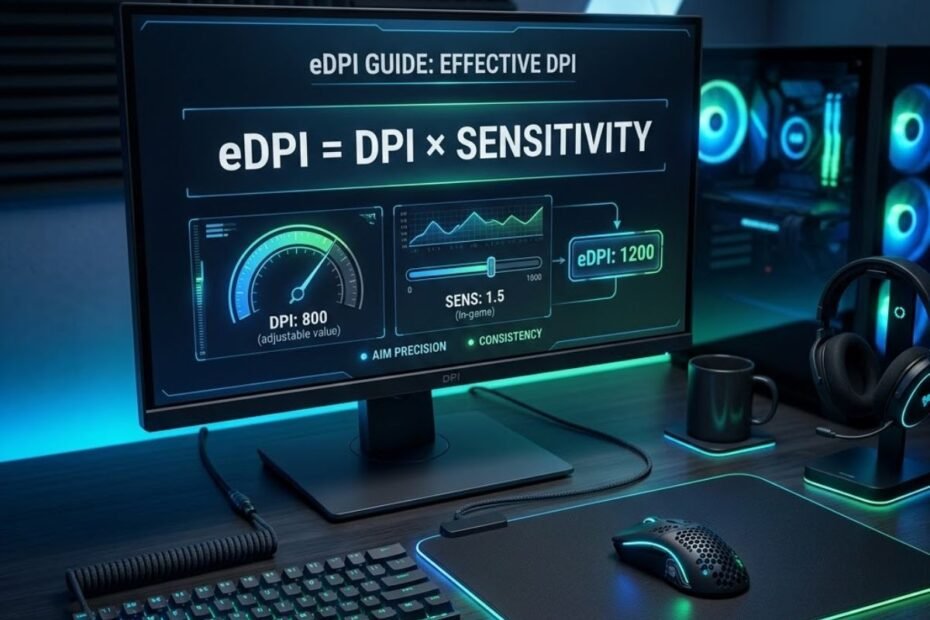
eDPI is a sensitivity measurement that combines mouse DPI and in-game sensitivity into a single value. Calculating eDPI helps FPS players understand their true sensitivity, compare settings more accurately, and avoid judging aim speed by DPI alone.
The basic formula is simple: eDPI = DPI × in-game sensitivity. For example, 800 DPI with 0.35 sensitivity equals 280 eDPI. That single number gives you a clearer way to compare sensitivity across FPS games like Valorant, Counter-Strike 2, Apex Legends, and other aim-heavy shooters.
This guide focuses only on how to calculate eDPI, how to avoid common calculation errors, and how to read your result after you find it. It does not try to replace a full DPI guide or a sensitivity comparison guide, because the goal here is to help you calculate your number correctly first.
What Is the Formula Used to Calculate eDPI in FPS Games
The eDPI formula is a simple calculation that multiplies mouse DPI by in-game sensitivity. This standardized value helps FPS players compare sensitivity settings more accurately than using DPI or sensitivity alone.
The formula is:
eDPI = Mouse DPI × In-Game Sensitivity
If your mouse is set to 800 DPI and your in-game sensitivity is 0.35, your eDPI is 280. The calculation would be 800 × 0.35 = 280.
Understanding the Two Values Required for an eDPI Calculation
The two values required for an eDPI calculation are your active mouse DPI and your current in-game sensitivity. These two values work together to determine how far your crosshair moves when you move your mouse.
The values below explain what each part of the eDPI formula means:
- DPI: The mouse DPI value is the sensitivity level set on your mouse sensor or mouse software.
- In-Game Sensitivity: The in-game sensitivity value is the sensitivity multiplier set inside the FPS game you are playing.
- eDPI: The eDPI value is the final number created when DPI and in-game sensitivity are multiplied together.
These three parts help separate raw mouse settings from your actual effective sensitivity in-game.
In practical terms, DPI controls the mouse input before the game receives it, while in-game sensitivity changes how strongly the game responds to that input. That is why two players can use different DPI values but still end up with the same eDPI.
Understanding these two values helps you calculate eDPI correctly before comparing your settings with another player.
Why FPS Players Use eDPI Instead of Looking at DPI Alone
eDPI is useful because it helps FPS players compare real sensitivity instead of judging settings by DPI alone. DPI by itself only tells you one part of the setup, not the full sensitivity used inside the game.
For example, one player may use 400 DPI with 0.70 sensitivity, while another player may use 800 DPI with 0.35 sensitivity. Those settings look different, but both create 280 eDPI.
This is why checking only what DPI is in a gaming mouse is not enough when you are trying to compare FPS sensitivity. DPI explains the mouse side of the equation, but eDPI explains the final in-game sensitivity after DPI and game sensitivity are combined.
Using eDPI helps players compare settings more fairly, especially when they are learning from pro settings, switching games, or adjusting sensitivity after changing DPI.
This section matters because eDPI gives FPS players a cleaner way to calculate and compare sensitivity without being misled by DPI alone.
How to Calculate Your eDPI Using Your Current Mouse Settings
Calculating your eDPI is a straightforward process that requires only your active DPI setting and your in-game sensitivity value. Following the correct steps helps make sure your final eDPI result is accurate.
The most important detail is that you must use the DPI profile that is currently active while you play. If your mouse software has multiple DPI stages, using the wrong one will give you the wrong eDPI.
How to Find Your Active DPI Setting
Your active DPI setting is the DPI value your mouse is currently using while you play. Finding this value helps you avoid calculating eDPI with an inactive or saved profile that is not actually being used in-game.
The example below shows the two values required before calculating eDPI:
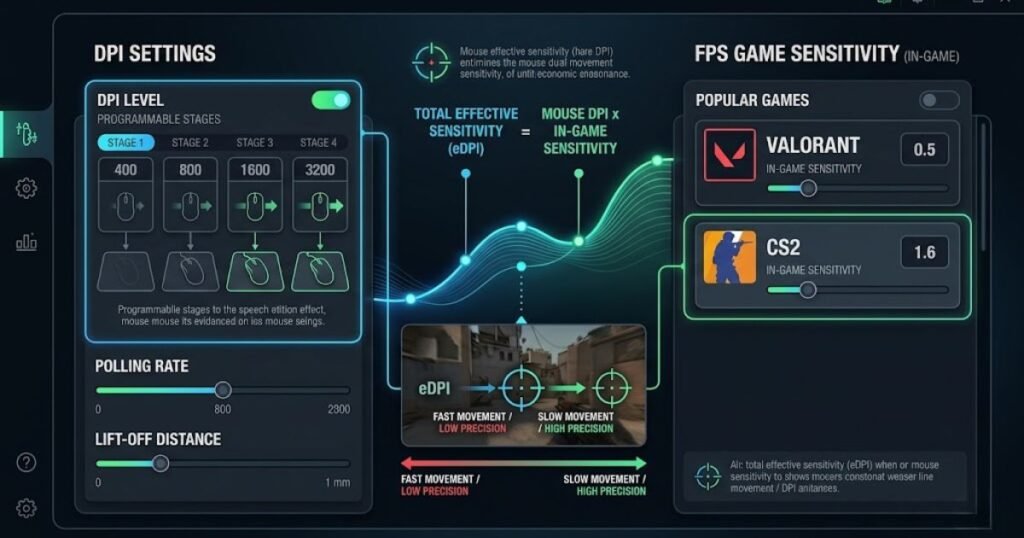
Most gaming mice allow you to check DPI inside the brand’s software. Logitech users may check Logitech G HUB, Razer users may check Razer Synapse, and many other mouse brands provide similar software for DPI profiles.
If your mouse has a DPI button, make sure you know which DPI stage is active before calculating. Some mice cycle through 400, 800, 1600, and higher DPI values, so guessing can easily create the wrong eDPI result.
Finding the active DPI first helps make the rest of the eDPI calculation more reliable.
How to Find Your Current In-Game Sensitivity
Your current in-game sensitivity is the sensitivity number set inside the FPS game you are playing. Finding this value helps complete the second half of the eDPI formula.
In most FPS games, sensitivity can be found in the mouse, controls, keyboard and mouse, or input settings menu. You should write down the exact number instead of rounding it too early.
For example, if your Valorant sensitivity is 0.347, use 0.347 in the calculation instead of rounding it to 0.35. Small differences can slightly change the final eDPI value.
Using your exact in-game sensitivity helps keep the eDPI calculation accurate and repeatable.
How to Multiply DPI and Sensitivity Correctly
Multiplying DPI and sensitivity correctly is the final step that gives you your eDPI value. This step helps convert two separate settings into one number you can compare more easily.
The following process can help you calculate your eDPI accurately:
- Check your active DPI: Open your mouse software or confirm the DPI stage currently active on your mouse.
- Find your game sensitivity: Open your FPS game settings and write down the exact sensitivity value.
- Multiply both values: Use the formula DPI × in-game sensitivity to calculate your eDPI.
- Save your result: Record the final number so you can compare it later or use it when adjusting settings.
Following this process helps prevent calculation mistakes caused by wrong DPI profiles, rounded sensitivity values, or guessing.
Once you know your eDPI, you can compare your sensitivity more clearly instead of changing settings based only on feel.
This section gives you the actual calculation process, which is the core reason most players search for how to calculate eDPI.
eDPI Calculator Reference Examples
eDPI reference examples help FPS players calculate effective sensitivity quickly without performing the math manually. If you already know your DPI and in-game sensitivity, comparing your settings with common examples can help verify that your calculation is correct.
The examples below show several popular DPI and sensitivity combinations used by FPS players and their resulting eDPI values.
The table below can be used as a quick eDPI calculator reference:
| DPI | Sensitivity | eDPI |
|---|---|---|
| 400 | 0.50 | 200 |
| 400 | 0.70 | 280 |
| 800 | 0.25 | 200 |
| 800 | 0.35 | 280 |
| 800 | 0.40 | 320 |
| 1600 | 0.125 | 200 |
| 1600 | 0.175 | 280 |
| 1600 | 0.20 | 320 |
This reference table helps players verify calculations and compare settings more quickly when discussing sensitivity with teammates or reviewing professional player setups.
If your settings are not listed here, simply use the formula eDPI = DPI × in-game sensitivity to calculate your exact value.
Real eDPI Calculation Examples Using Common FPS Sensitivity Settings
Real examples help players understand how different DPI and sensitivity combinations can create the same eDPI value. These examples also make the formula easier to apply to your own FPS settings.
The examples below use common DPI values seen in FPS games. The goal is not to say one setup is better than another, but to show how the calculation works across different DPI and sensitivity combinations.
Calculating eDPI with 400 DPI Settings
Calculating eDPI with 400 DPI is useful because many FPS players still use lower DPI values for controlled aim. The calculation works the same way as any other DPI setting.
The illustration below demonstrates how different settings can produce the same eDPI value:
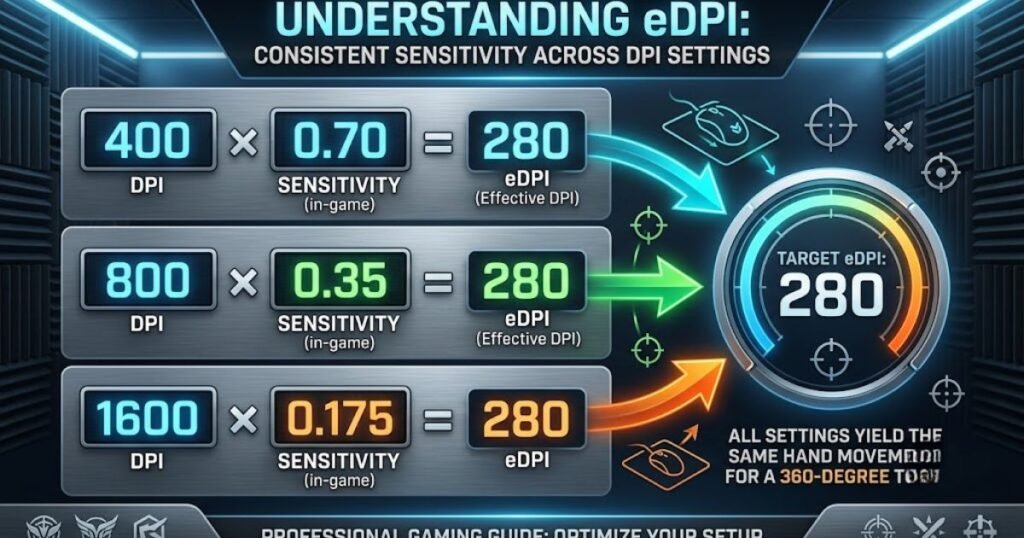
For example, if you use 400 DPI and 0.70 sensitivity, the calculation is 400 × 0.70 = 280 eDPI.
This result means your effective sensitivity is 280, even though your raw mouse DPI is only 400.
The key point is that low DPI does not automatically mean low eDPI, because in-game sensitivity can raise the final value.
Calculating eDPI with 800 DPI Settings
Calculating eDPI with 800 DPI is common because 800 DPI is widely used by FPS players who want a balanced mouse setting. This DPI value often makes sensitivity math easier to understand.
For example, if you use 800 DPI and 0.35 sensitivity, the calculation is 800 × 0.35 = 280 eDPI.
This produces the same 280 eDPI as the 400 DPI example above, even though the DPI and sensitivity values are different.
This example shows why eDPI is more useful than judging sensitivity by DPI alone.
Calculating eDPI with 1600 DPI Settings
Calculating eDPI with 1600 DPI helps show how higher DPI can still produce a controlled final sensitivity. A higher DPI value does not automatically mean a player uses a high eDPI.
For example, if you use 1600 DPI and 0.175 sensitivity, the calculation is 1600 × 0.175 = 280 eDPI.
This gives the same 280 eDPI as 400 DPI with 0.70 sensitivity and 800 DPI with 0.35 sensitivity.
The result shows that different DPI and sensitivity combinations can feel similar in-game when their eDPI values match.
The table below shows how different DPI and sensitivity combinations can produce the same eDPI value:
| Mouse DPI | In-Game Sensitivity | Calculation | Final eDPI |
|---|---|---|---|
| 400 DPI | 0.70 | 400 × 0.70 | 280 eDPI |
| 800 DPI | 0.35 | 800 × 0.35 | 280 eDPI |
| 1600 DPI | 0.175 | 1600 × 0.175 | 280 eDPI |
After calculating your eDPI, the next step is understanding what the number actually represents. Our guide on what eDPI is explains how FPS players use this measurement to compare sensitivity settings.
This section proves why eDPI is useful: it turns different-looking settings into one comparable sensitivity number.
How to Calculate eDPI for Valorant Sensitivity Settings
Calculating eDPI for Valorant is the same process used in every FPS game. Valorant players only need their current mouse DPI and Valorant sensitivity value to calculate their effective sensitivity accurately.
Many players search for eDPI because professional Valorant settings are often shared using eDPI rather than DPI alone. A player may use a completely different DPI setting than you, but their overall sensitivity can still be very similar if the eDPI values match.
Understanding how to calculate Valorant eDPI makes it easier to compare settings, copy sensitivity recommendations, and maintain consistency when testing new configurations.
Where to Find Your Valorant Sensitivity Value
Your Valorant sensitivity value is located inside the game’s mouse settings menu. Finding the correct sensitivity value is essential because even small differences can change the final eDPI result.
To locate your sensitivity, open Valorant and navigate to Settings, then select the Mouse section. The number displayed under Aim Sensitivity is the value used in the eDPI formula.
Players should use the exact sensitivity shown in the game rather than rounding the number. A sensitivity of 0.347 and a sensitivity of 0.350 may look similar, but they produce slightly different eDPI values.
Recording the exact value helps ensure the calculation is accurate and allows future sensitivity adjustments to be tracked more effectively.
Example of a Valorant eDPI Calculation
A Valorant eDPI calculation is performed by multiplying your mouse DPI by your Valorant sensitivity value. This simple calculation converts two settings into one standardized sensitivity number.
The following process can help you calculate your Valorant eDPI correctly:
- Check your DPI: Confirm the active DPI setting in your mouse software.
- Open Valorant settings: Locate your current Aim Sensitivity value.
- Multiply the values: DPI × sensitivity = eDPI.
- Record the result: Save the final number for future comparisons.
For example, a player using 800 DPI and 0.35 sensitivity would calculate 800 × 0.35 = 280 eDPI.
Another player using 1600 DPI and 0.175 sensitivity would also have 280 eDPI, even though the individual settings appear very different.
Calculating Valorant eDPI helps create a common reference point that is easier to compare than DPI or sensitivity alone.
This section demonstrates that calculating Valorant eDPI is simply an application of the same formula already covered earlier in the guide.
How to Calculate eDPI for Counter-Strike 2 Sensitivity Settings
Calculating eDPI for Counter-Strike 2 uses the same DPI × sensitivity formula as Valorant and other FPS games. The process helps players compare sensitivity settings more consistently across different setups.
Counter-Strike players often discuss sensitivity using DPI and in-game sensitivity separately. However, calculating eDPI makes those comparisons more meaningful because it combines both settings into a single value.
Whether you are comparing your settings with teammates or testing a new configuration, calculating eDPI helps establish a more reliable baseline.
Where to Find Your CS2 Sensitivity Value
Your CS2 sensitivity value can be found inside the mouse settings section of the game. This value is required for calculating your final eDPI.
Open the CS2 settings menu and navigate to Keyboard and Mouse settings. The sensitivity number shown there is the value used in the formula.
As with any FPS game, using the exact number is important. Rounding values too early can create small differences in the final eDPI calculation.
Keeping a record of your exact sensitivity also makes it easier to track adjustments when testing different aim settings.
Example of a CS2 eDPI Calculation
A CS2 eDPI calculation converts your DPI and in-game sensitivity into a single comparable value. This makes sensitivity comparisons easier between players who use different configurations.
The following process can help you calculate your CS2 eDPI accurately:
- Identify your DPI: Check the active DPI profile on your mouse.
- Find your CS2 sensitivity: Open the game settings and locate the sensitivity value.
- Multiply both values: Use the formula DPI × sensitivity.
- Save the result: Use the final eDPI as your sensitivity reference.
For example, if a player uses 800 DPI and 0.40 sensitivity, the calculation becomes 800 × 0.40 = 320 eDPI.
The same eDPI could be achieved using different DPI and sensitivity combinations, which is why eDPI is often preferred for comparisons.
Using eDPI allows CS2 players to discuss sensitivity using a common measurement rather than relying on separate settings.
This section reinforces that eDPI remains consistent regardless of the specific FPS title being played.
How to Determine Whether Your eDPI Is Low Medium or High
Comparing your calculated eDPI against common FPS sensitivity ranges helps determine whether your settings are considered low, medium, or high. This comparison provides context for the number you calculated earlier.
Calculating eDPI is only the first step. Once you know your value, you can evaluate how it compares with common sensitivity ranges used throughout FPS games.
The purpose of these ranges is not to tell players which setting is best. Instead, they help classify where a sensitivity falls on the overall spectrum.
Typical Low eDPI Ranges Used by FPS Players
Low eDPI values are generally associated with slower crosshair movement and larger mouse movements. Many tactical FPS players prefer lower sensitivity ranges because they provide more precision for micro-adjustments.
The visual guide below shows how common FPS sensitivity ranges are typically classified:
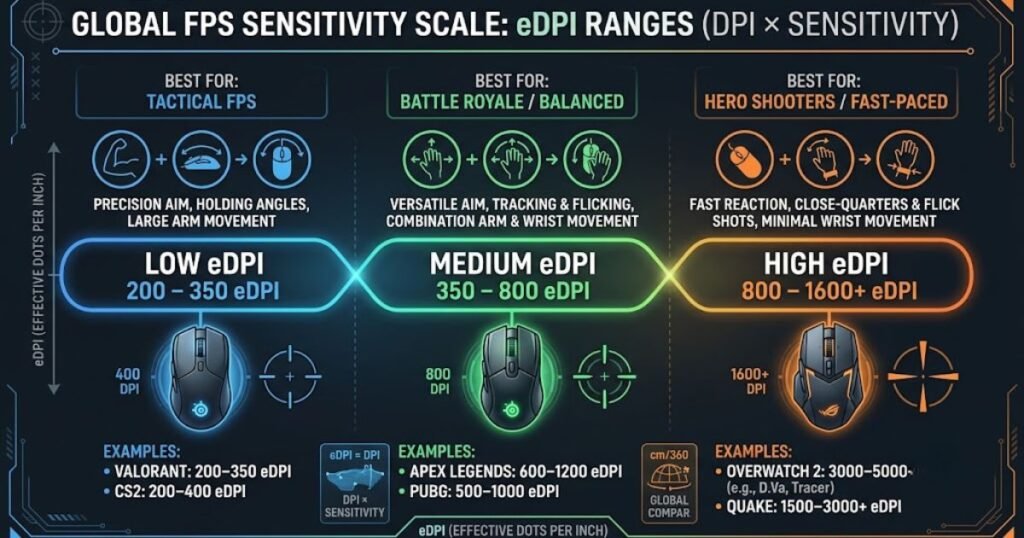
Players using low eDPI often rely more on arm movement than wrist movement. This approach can improve consistency for tracking and precision aiming.
Although low eDPI is popular in some competitive environments, it is not automatically better for every player or every game.
Low eDPI simply represents one end of the sensitivity spectrum.
Typical Medium eDPI Ranges Used by FPS Players
Medium eDPI values create a balance between precision and mobility. Many players choose medium sensitivity because it provides flexibility across different FPS genres.
A medium eDPI can make it easier to perform both controlled aiming and faster turns without requiring extremely large mouse movements.
This range is often considered a middle ground rather than an extreme sensitivity choice.
Medium eDPI demonstrates how sensitivity can remain versatile without being excessively slow or fast.
Typical High eDPI Ranges Used by FPS Players
High eDPI values produce faster crosshair movement with smaller physical mouse movements. Players using higher sensitivity can turn and react quickly, but maintaining precise control may become more challenging.
High sensitivity is often preferred by players who have limited mouse space or who naturally aim using wrist movement.
The effectiveness of a high eDPI depends on individual comfort, playstyle, and consistency rather than the number itself.
Understanding where your eDPI falls on the sensitivity spectrum helps provide context for future adjustments.
Many players mistakenly compare only their DPI values when discussing sensitivity. However, comparing DPI alone does not account for in-game sensitivity and can lead to misleading conclusions. A detailed comparison of dpi vs edpi explains why eDPI provides a more complete measurement.
The table below shows common FPS eDPI classifications and their general characteristics:
| eDPI Range | Classification | General Characteristics |
|---|---|---|
| Below 200 | Low | Large mouse movements and slower turning speed. |
| 200–400 | Medium | Balanced control and mobility. |
| Above 400 | High | Faster movement with smaller mouse travel. |
These ranges should be viewed as reference points rather than strict rules because sensitivity preferences vary widely between players and games.
This section helps transform a raw eDPI number into something more meaningful by placing it within a broader sensitivity context.
Common Mistakes Players Make When Calculating eDPI
Many FPS players calculate eDPI incorrectly because they use the wrong DPI value, misunderstand sensitivity settings, or compare numbers without proper context. Avoiding these mistakes helps ensure that your calculated eDPI accurately reflects your real in-game sensitivity.
The eDPI formula itself is simple, but the information used in the calculation is often where errors occur. A small mistake in DPI selection or sensitivity tracking can produce a misleading result and make sensitivity comparisons unreliable.
Understanding these common mistakes helps players calculate eDPI correctly and make better decisions when adjusting their settings.
Using an Inactive DPI Profile During Calculations
Using an inactive DPI profile is one of the most common eDPI calculation mistakes. Many gaming mice store multiple DPI stages, but only one of them is active while playing.
For example, a player may assume they are using 800 DPI because that is their preferred setting, while the mouse is actually running at 1600 DPI due to an accidental DPI switch. Any eDPI calculation based on the wrong DPI value will also be incorrect.
This issue becomes more common on mice with dedicated DPI buttons that allow instant profile changes. Players sometimes switch profiles unintentionally and forget to verify the active setting before calculating eDPI.
Checking the active DPI profile before performing any calculation helps eliminate one of the most frequent sources of error.
This mistake highlights why accurate input values matter just as much as the eDPI formula itself.
Confusing DPI with Overall Mouse Sensitivity
Many players incorrectly assume that DPI alone determines how sensitive their mouse feels in-game. In reality, DPI is only one part of the final sensitivity equation.
Two players can use the same DPI value while experiencing completely different sensitivity levels because their in-game sensitivity settings are different. Likewise, two players can use different DPI values and still end up with identical eDPI results.
This misunderstanding often leads players to make unnecessary DPI adjustments when the real difference comes from the game’s sensitivity setting.
Focusing only on DPI removes half of the information required to understand overall sensitivity.
Recognizing that DPI is only one component of eDPI helps players interpret sensitivity settings more accurately. Players who want a deeper explanation of how these settings interact can read our guide on DPI vs eDPI.
Comparing Sensitivity Settings Without Using eDPI
Comparing sensitivity settings without using eDPI often leads to inaccurate conclusions. Looking only at DPI or only at in-game sensitivity provides an incomplete picture of a player’s actual sensitivity.
For example, one player may use 400 DPI with high sensitivity while another uses 1600 DPI with low sensitivity. At first glance, those settings appear completely different. However, the resulting eDPI values may be identical.
This is why experienced FPS players often rely on eDPI when comparing settings across teammates, professional players, or different games. The combined value provides a more consistent reference point than either setting alone.
Players who want to understand why these differences occur can explore a deeper breakdown of dpi vs sensitivity, which explains how each setting contributes to overall mouse movement.
The factors below explain why sensitivity comparisons become inaccurate without eDPI:
- Different DPI values: Players may use completely different mouse DPI settings.
- Different game sensitivity values: Sensitivity multipliers vary widely between players.
- Misleading comparisons: Matching only one setting ignores the second half of the sensitivity equation.
- Inconsistent conclusions: Two players may appear different despite having the same effective sensitivity.
These factors explain why eDPI has become a standard measurement for comparing FPS sensitivity settings.
Understanding these mistakes helps ensure that future sensitivity comparisons are based on complete information rather than isolated numbers.
This section shows that accurate eDPI calculations depend not only on the formula itself but also on using the correct data and comparison methods.
Why Different DPI and Sensitivity Settings Can Produce the Same eDPI
Different DPI and sensitivity combinations can produce the same eDPI because eDPI measures the final relationship between both settings rather than evaluating them separately. This is one of the most important concepts players learn after calculating their eDPI.
Many FPS players are surprised to discover that completely different settings can create identical effective sensitivity. Understanding this relationship helps explain why eDPI is widely used when comparing player configurations.
Instead of focusing on individual numbers, eDPI focuses on the final sensitivity outcome generated by those numbers working together.
Examples of Different DPI Values Producing the Same eDPI
Different DPI values can generate the same eDPI when the sensitivity value changes proportionally. This allows players to reach the same overall sensitivity through multiple configuration paths.
For example, a player using 400 DPI with 0.70 sensitivity reaches 280 eDPI. Another player using 800 DPI with 0.35 sensitivity also reaches 280 eDPI.
Although the DPI settings differ significantly, the final effective sensitivity remains the same because the relationship between DPI and sensitivity is balanced.
This demonstrates why comparing DPI values alone often creates confusion during sensitivity discussions.
The key lesson is that DPI should always be viewed alongside sensitivity rather than as an isolated setting.
Examples of Different Sensitivity Values Producing the Same eDPI
Different sensitivity values can also create identical eDPI results when paired with different DPI settings. The sensitivity number itself does not determine overall sensitivity without considering DPI.
A player using 1600 DPI with 0.175 sensitivity and another using 800 DPI with 0.35 sensitivity will both achieve 280 eDPI.
This is why copying another player’s sensitivity value without checking DPI often produces unexpected results. The same sensitivity number can feel completely different when paired with a different DPI setting.
Looking at sensitivity values alone removes important context from the comparison.
Understanding this relationship helps players avoid incorrect assumptions when testing or sharing settings.
Why eDPI Creates Fair Sensitivity Comparisons
eDPI creates fair sensitivity comparisons because it standardizes multiple settings into a single reference value. This makes it easier to compare players who use different hardware and sensitivity configurations.
Without eDPI, players would need to compare both DPI and sensitivity separately every time they discuss settings. Using one combined number simplifies the process and reduces misunderstandings.
Standardization is particularly useful when comparing settings across communities, professional players, guides, and different FPS titles.
Rather than asking whether two players use the same DPI or sensitivity, eDPI allows players to compare the final sensitivity outcome directly.
This approach creates a more practical and meaningful comparison framework for FPS gaming.
The table below demonstrates how different settings can generate the same eDPI value:
| Mouse DPI | Sensitivity | eDPI |
|---|---|---|
| 400 | 0.70 | 280 |
| 800 | 0.35 | 280 |
| 1600 | 0.175 | 280 |
This flexibility explains why players should compare eDPI rather than focusing exclusively on DPI or sensitivity values.
The ability to standardize different settings into one comparable number is one of the primary reasons eDPI remains popular among FPS players.
Should You Change Your Sensitivity After Calculating Your eDPI
Calculating eDPI helps players evaluate their current sensitivity, but the number itself does not automatically mean changes are necessary. The purpose of eDPI is to provide a measurable reference point, not to force every player into the same sensitivity range.
Many players calculate their eDPI and immediately assume it is too high or too low because it differs from a professional player’s settings. In reality, sensitivity should be judged by performance, consistency, comfort, and mouse control rather than by a single number.
Once you know your eDPI, the next step is evaluating how your current settings affect your aim during actual gameplay.
Signs Your Current eDPI May Be Too High
A high eDPI may become a problem if it makes precise crosshair control difficult. Sensitivity that is too fast can create unnecessary aiming errors even when reaction speed feels comfortable.
Players often notice high sensitivity issues during precision tasks such as holding angles, tracking moving targets, or making small adjustments at long range.
The signs below may indicate that your eDPI is higher than necessary:
- Frequent overflicking: Your crosshair consistently moves past the target.
- Unstable micro-adjustments: Small aiming corrections become difficult to control.
- Inconsistent tracking: Maintaining crosshair placement on moving targets feels difficult.
- Excessive wrist movement: Tiny wrist movements produce large crosshair changes.
These issues do not automatically prove that your sensitivity is too high, but they can indicate that further testing may be worthwhile.
Identifying these patterns helps players determine whether sensitivity adjustments might improve overall control.
Signs Your Current eDPI May Be Too Low
A low eDPI may become limiting when players struggle to move their crosshair quickly enough during combat situations. Sensitivity that is too slow can reduce responsiveness and make fast reactions more difficult.
Players usually notice low sensitivity problems when clearing multiple angles, reacting to unexpected threats, or performing rapid directional changes.
The signs below may indicate that your eDPI is lower than necessary:
- Slow target acquisition: Reaching enemies requires excessive mouse movement.
- Difficulty turning quickly: Fast directional changes feel uncomfortable.
- Frequent mouse lifting: Large mouse movements force constant repositioning.
- Limited desk space: Available mouse space restricts natural movement.
These situations can make gameplay feel physically demanding even when precision remains strong.
Recognizing these limitations helps players decide whether a modest increase in sensitivity could improve overall comfort and responsiveness.
Situations Where Keeping Your Current eDPI Makes Sense
Keeping your current eDPI often makes sense when your aim remains consistent and your sensitivity feels natural during gameplay. A different number is not automatically a better number.
Many players perform well using sensitivity settings that fall outside commonly discussed ranges. Individual mechanics, mouse control, desk setup, and playstyle all influence how a sensitivity feels in practice.
The factors below explain when maintaining your current eDPI may be the best decision:
- Consistent aim: Your accuracy remains stable across multiple matches.
- Comfortable movement: The sensitivity feels natural without excessive effort.
- Reliable muscle memory: Your crosshair placement remains predictable.
- No recurring control issues: Overflicking and underflicking are not major problems.
Changing sensitivity simply because another player uses a different eDPI often creates unnecessary inconsistency.
Evaluating actual performance is usually more valuable than chasing a specific sensitivity number.
This section shows that eDPI should be used as a reference tool rather than a strict rule for determining the “correct” sensitivity.
eDPI Quick Reference Table for Popular FPS DPI and Sensitivity Combinations
A quick reference table helps players estimate common eDPI values without performing calculations manually every time. These examples can be useful when comparing settings or evaluating new sensitivity configurations.
The combinations below are not recommendations. They simply demonstrate how different DPI and sensitivity values translate into specific eDPI results.
The table below shows common FPS DPI and sensitivity combinations along with their resulting eDPI values:
| Mouse DPI | Sensitivity | eDPI |
|---|---|---|
| 400 | 0.50 | 200 |
| 400 | 0.75 | 300 |
| 400 | 1.00 | 400 |
| 800 | 0.25 | 200 |
| 800 | 0.375 | 300 |
| 800 | 0.50 | 400 |
| 1600 | 0.125 | 200 |
| 1600 | 0.1875 | 300 |
| 1600 | 0.25 | 400 |
These examples reinforce one of the most important lessons in this guide: the final eDPI matters more than the individual DPI or sensitivity values when comparing overall sensitivity.
Using a reference table can save time when experimenting with settings, evaluating recommendations, or converting sensitivity configurations between different setups.
This section provides a practical resource that players can return to whenever they need a fast eDPI comparison.
Final Thoughts on Calculating eDPI for FPS Games
Calculating eDPI is one of the simplest ways to understand your true sensitivity and compare settings consistently across FPS games. By combining DPI and in-game sensitivity into a single value, eDPI removes much of the confusion that often appears when players discuss sensitivity settings.
Throughout this guide, you learned how to calculate eDPI, avoid common calculation mistakes, interpret your result, and compare different DPI and sensitivity combinations more effectively. Understanding these concepts creates a stronger foundation for future sensitivity adjustments.
While eDPI provides useful context, it should always be viewed as a reference point rather than a universal rule. The best sensitivity remains the one that allows you to aim consistently and comfortably during real gameplay.
Key Things to Remember About eDPI Calculations
Several important principles help ensure that eDPI calculations remain accurate and useful. Remembering these concepts makes it easier to compare settings and avoid common misunderstandings.
The points below summarize the most important lessons from this guide:
- Use your active DPI: Always calculate using the DPI profile currently active during gameplay.
- Use exact sensitivity values: Avoid rounding sensitivity numbers before calculating.
- Multiply DPI and sensitivity: eDPI is calculated using a simple multiplication formula.
- Compare eDPI instead of DPI: eDPI provides a more complete sensitivity measurement.
- Focus on consistency: The goal is understanding sensitivity, not chasing a specific number.
These principles help players calculate and interpret eDPI correctly while avoiding many common mistakes.
Remembering these fundamentals will make future sensitivity adjustments more structured and easier to evaluate.
What to Do After Finding Your Current eDPI
After calculating your current eDPI, the next step is understanding how sensitivity fits into your overall FPS setup. Sensitivity is only one factor that influences aiming performance.
Mouse shape, weight, sensor quality, mouse pad surface, grip style, and polling rate can all influence how a sensitivity setting feels during gameplay. Calculating eDPI helps establish a baseline, but the rest of the setup still plays an important role.
Players who want to build a complete understanding of FPS gaming hardware can explore our guide on gaming mouse for fps games, which explains the key features that affect aiming performance and mouse control.
Once you understand how sensitivity fits into the bigger picture, it becomes easier to make informed decisions when upgrading equipment or refining settings.
eDPI should be viewed as a starting point for optimization rather than the final answer.
Players looking for current recommendations can also explore our roundup of top best gaming mouse for fps games in 2026, which highlights mice designed for competitive FPS performance.
These resources can help you continue improving your overall setup after understanding your eDPI.
This guide concludes with the most important takeaway: calculating eDPI helps create a consistent and reliable way to understand sensitivity, making future comparisons and adjustments significantly easier.
Frequently Asked Questions About eDPI Calculations
The FAQs below answer common questions players have after learning how to calculate eDPI. These answers focus on practical calculation questions rather than advanced sensitivity optimization.
What is the formula for calculating eDPI?
The formula for calculating eDPI is DPI multiplied by in-game sensitivity. For example, 800 DPI × 0.35 sensitivity equals 280 eDPI.
How do I find my mouse DPI?
Your mouse DPI can usually be found inside your mouse software. Most gaming mouse brands provide software that displays the currently active DPI profile.
How do I find my game sensitivity?
Your game sensitivity is located inside the game’s mouse or controls settings menu. Use the exact value shown for accurate calculations.
Can I calculate eDPI without software?
Yes, you can calculate eDPI without software if you already know your DPI and sensitivity values. Simply multiply the two numbers together.
How do I calculate Valorant eDPI?
Valorant eDPI is calculated using the same formula as other FPS games. Multiply your mouse DPI by your Valorant sensitivity setting.
How do I calculate CS2 eDPI?
CS2 eDPI is calculated by multiplying DPI and in-game sensitivity. The process is identical to the standard eDPI formula.
Is eDPI the same as DPI?
No, eDPI is not the same as DPI. DPI is only one component of the calculation, while eDPI combines DPI and in-game sensitivity.
Why do professional FPS players use eDPI?
Professional players use eDPI because it provides a more accurate way to compare sensitivity settings. It standardizes different DPI and sensitivity combinations into one value.
What is considered a low eDPI?
Low eDPI generally refers to the lower end of common FPS sensitivity ranges. Exact classifications vary depending on the game and player preferences.
Can different settings create the same eDPI?
Yes, different DPI and sensitivity combinations can produce identical eDPI values. This is one of the core concepts behind eDPI calculations.
Should I change my eDPI after calculating it?
Not necessarily. Your calculated eDPI should be evaluated alongside comfort, consistency, and aiming performance before making changes.
What should I learn after understanding eDPI?
After understanding eDPI, it is useful to learn how gaming mouse hardware, sensor performance, shape, and mouse pads affect aim consistency. These factors work alongside sensitivity settings during gameplay.
Conclusion
Calculating eDPI is a simple process that helps FPS players understand their true sensitivity by combining DPI and in-game sensitivity into a single value. Instead of comparing DPI or sensitivity separately, eDPI provides a more accurate measurement that reflects how a setup actually feels during gameplay.
Throughout this guide, you learned the eDPI formula, how to calculate it correctly, how to avoid common mistakes, and how to interpret your result within common FPS sensitivity ranges. You also saw how completely different DPI and sensitivity combinations can produce the same eDPI, which explains why eDPI has become a standard reference among competitive FPS players.
While calculating eDPI is valuable, the number itself should not be treated as a target that every player must follow. A sensitivity setting is only effective if it allows you to aim consistently, react comfortably, and maintain control during real matches. The best use of eDPI is as a reference point that helps you evaluate and compare settings more objectively.
Once you know your eDPI, future sensitivity adjustments become easier to understand because every change can be measured instead of guessed. Whether you play Valorant, Counter-Strike 2, Apex Legends, or other FPS games, eDPI provides a reliable framework for comparing sensitivity settings and building a more consistent aiming experience.
Thank you for reading this guide. We hope it helped you calculate your eDPI accurately and better understand how sensitivity settings work in FPS games.