
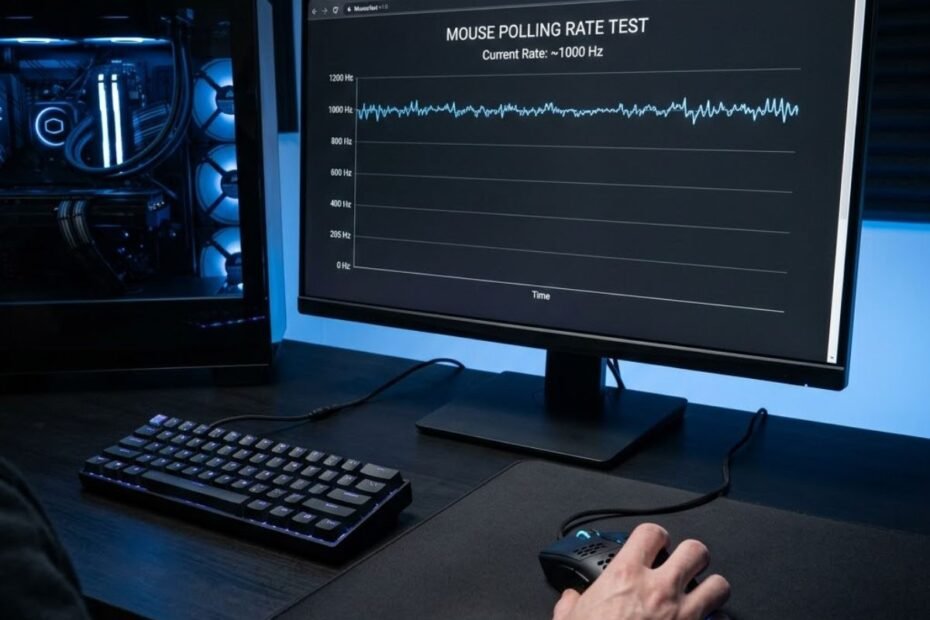
Mouse polling rate determines how often your gaming mouse reports its position to your computer every second. While gaming software can display a selected polling rate, measuring the actual report frequency is the only reliable way to confirm your mouse is performing as expected.
If you play competitive FPS games, verifying your mouse’s polling rate can help identify inconsistent performance after changing settings, updating firmware, or troubleshooting responsiveness. Rather than relying on the configured value alone, a quick test shows whether your mouse is consistently delivering the report rate you selected.
As you learn how to measure your mouse correctly, it also helps to understand what mouse polling rate actually represents and why manufacturers offer multiple polling rate options. This foundation makes the test results much easier to interpret.
In this guide, you’ll learn the most accurate ways to check your mouse polling rate, understand how to read the results, and avoid common testing mistakes that can produce misleading measurements.
How do you check your mouse polling rate accurately?
You can accurately check your mouse polling rate by measuring its real report frequency with an online tester, dedicated desktop software, or your mouse manufacturer’s configuration software. Using more than one method provides additional confidence that your mouse is operating correctly.
Many gaming mice support polling rates ranging from 125 Hz to 8000 Hz. However, the selected value shown inside your mouse software represents a configuration rather than a guaranteed real-world measurement. Testing your mouse under normal operating conditions verifies whether your hardware, USB connection, firmware, and operating system are all working together properly.
The illustration below shows a typical browser-based polling rate test in progress:
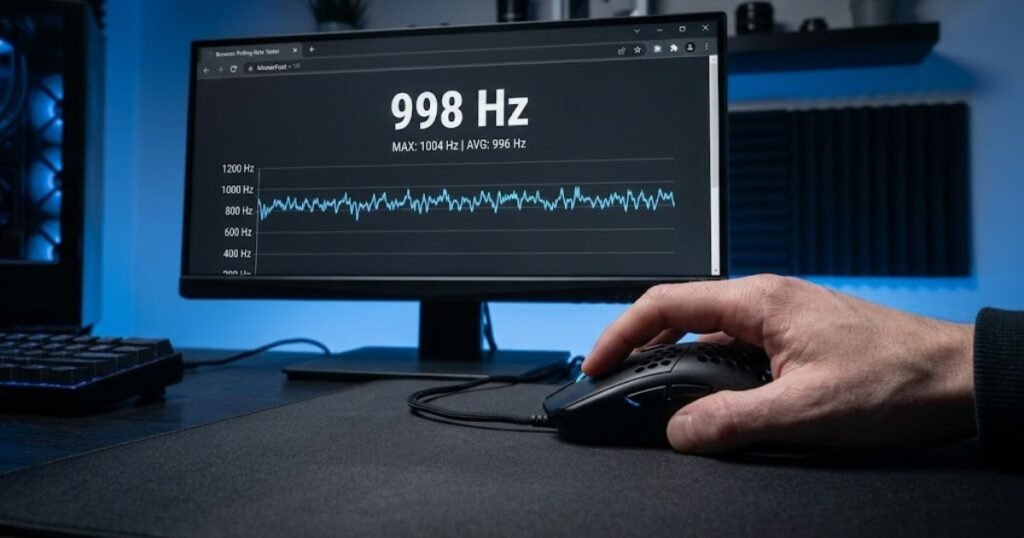
Each testing method offers different advantages depending on whether you want a quick verification or a more detailed analysis of your mouse’s reporting consistency.
Check your polling rate with an online tester
An online polling rate tester is the fastest and most convenient way to measure your mouse’s actual report frequency. Because it runs directly in your browser, it requires no installation and works with nearly every modern gaming mouse.
Most browser-based polling rate testers calculate how many movement reports your mouse sends each second while you continuously move the cursor. Performing smooth, fast movements for several seconds generally produces more consistent averages than making short or irregular movements.
The following process helps you perform a more accurate polling rate test:
- Open a trusted polling rate tester: Launch a browser-based polling rate testing tool before changing any mouse settings.
- Use your preferred polling rate: Verify the desired polling rate has already been selected in your mouse software.
- Move the mouse continuously: Draw fast circles or figure-eight patterns without stopping during the measurement.
- Test for several seconds: Longer tests usually produce a more stable average than quick one-second measurements.
- Repeat the test: Perform multiple runs and compare the averages instead of relying on a single result.
Following the same testing procedure each time makes it much easier to compare different polling rate settings or verify whether firmware changes have improved reporting consistency.
Verify the polling rate using desktop software
Desktop utilities provide another reliable way to verify polling rate because they collect mouse reports directly from the operating system instead of relying entirely on browser events.
Some diagnostic applications display both the average polling rate and the variation between individual reports, making them useful for identifying unstable behavior that may not be obvious during a short browser test. They are especially helpful when troubleshooting advanced gaming mice running high polling rates.
If you notice significant differences between browser-based measurements and desktop software, repeat the test several times under the same conditions before assuming there is a hardware problem. Consistent results across multiple tests are far more meaningful than a single unusually high or low reading.
Desktop software is generally the better choice when you want to compare firmware versions, evaluate different USB ports, or perform more controlled testing.
Confirm the configured polling rate in your mouse software
Your mouse manufacturer’s software confirms which polling rate is currently configured, but it should be treated as a settings verification tool rather than a measurement tool.
Most gaming mouse software allows you to switch between several polling rate options, save profiles, update firmware, and synchronize settings with onboard memory. Before running any polling rate test, verify that the intended value has actually been applied to the active profile.
The factors below explain what you should verify before starting a polling rate test:
- Active profile: Make sure the correct gaming profile is currently selected.
- Polling rate setting: Confirm the software displays the intended report frequency.
- Firmware status: Install the latest stable firmware if an update is available.
- Onboard memory: Ensure new settings have been saved if your mouse supports onboard profiles.
- USB connection: Verify the mouse is connected directly to the computer rather than through an unreliable hub whenever possible.
Checking these settings first eliminates many common configuration mistakes and ensures the polling rate measurement reflects the profile you actually intend to use during gaming.
With the testing methods covered, the next step is learning how to interpret your results correctly and understand why measured polling rates rarely remain at one perfectly fixed number.
How should you interpret polling rate test results?
Polling rate test results should be interpreted as an average rather than an exact value. Small fluctuations are completely normal because mouse reports are processed continuously by the operating system, USB controller, and the testing application.
Many users expect a mouse configured to 1000 Hz to display exactly 1000 every second. In reality, no gaming mouse produces perfectly identical report intervals throughout an entire test. Instead of focusing on individual spikes, evaluate the average result over several seconds and compare multiple test runs.
This example demonstrates how polling rate measurements naturally fluctuate during testing:
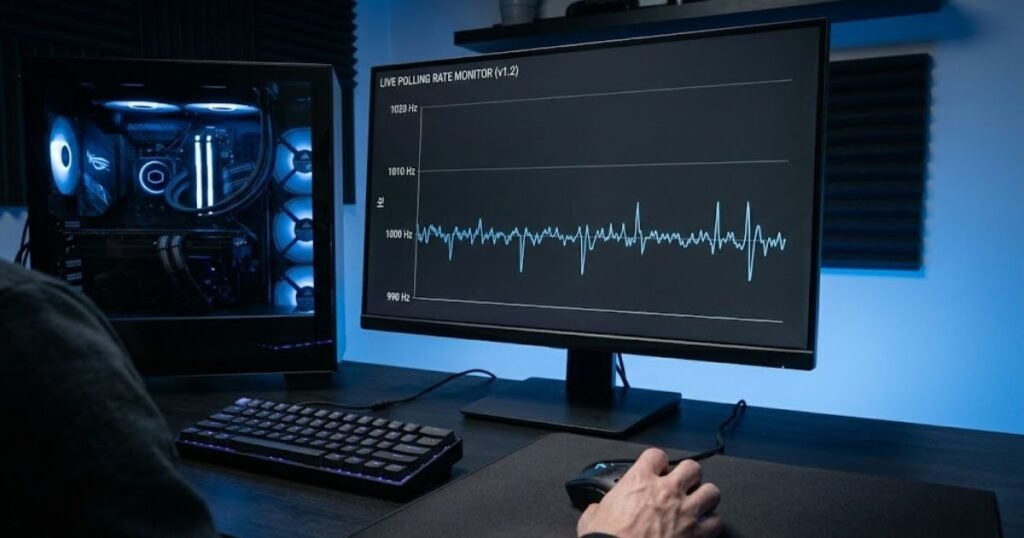
Understanding what constitutes a healthy measurement helps distinguish normal behavior from an actual hardware or configuration problem.
Why is your polling rate rarely an exact number?
A measured polling rate almost never remains perfectly fixed because report timing naturally varies by a few milliseconds. Minor variations are expected even on premium gaming mice.
Every polling rate measurement represents hundreds or thousands of individual reports generated while you move the mouse. Factors such as cursor speed, browser event processing, USB scheduling, and the timing resolution of the testing application all introduce small differences between individual samples.
For example, a mouse configured to 1000 Hz may briefly display values such as 986 Hz, 995 Hz, or 1003 Hz during a test. These small fluctuations are considered normal when the overall average remains close to the configured value.
Rather than chasing a perfectly constant number, focus on whether the average remains stable across repeated tests performed under similar conditions.
What polling rate values are considered normal?
Most gaming mice perform normally when their measured average stays reasonably close to the configured polling rate. Short-term fluctuations are expected, but consistently large deviations may indicate a configuration or hardware issue.
The table below summarizes the typical measurement ranges for common polling rate settings:
| Configured Polling Rate | Typical Measured Average | Expected Stability | Interpretation |
|---|---|---|---|
| 125 Hz | 120–125 Hz | Very Stable | Normal operating behavior. |
| 250 Hz | 245–250 Hz | Very Stable | Minor variation is expected. |
| 500 Hz | 490–500 Hz | Stable | Consistent averages indicate proper operation. |
| 1000 Hz | 980–1000 Hz | Stable | Brief fluctuations are completely normal. |
| 2000 Hz | 1950–2000 Hz | Good | Small variation becomes more noticeable. |
| 4000 Hz | 3900–4000 Hz | Good | Requires compatible hardware for consistent results. |
| 8000 Hz | 7800–8000 Hz | Variable | Minor fluctuations are expected during testing. |
The measured average is much more important than occasional peaks or dips. Consistently staying close to the configured value generally indicates that your mouse is reporting correctly.
Some enthusiasts also compare higher polling rate modes to determine whether upgrading provides practical benefits. If you’re considering high-frequency options, our comparison of 1000 Hz vs 4000 Hz polling rate explains the real-world differences in gaming performance.
Why does your polling rate fluctuate during testing?
Polling rate fluctuations are usually caused by normal system behavior rather than a faulty mouse. Hardware limitations, software activity, and testing technique can all influence the measured average during a polling rate test.
The following illustration highlights several factors that can influence polling rate measurements:
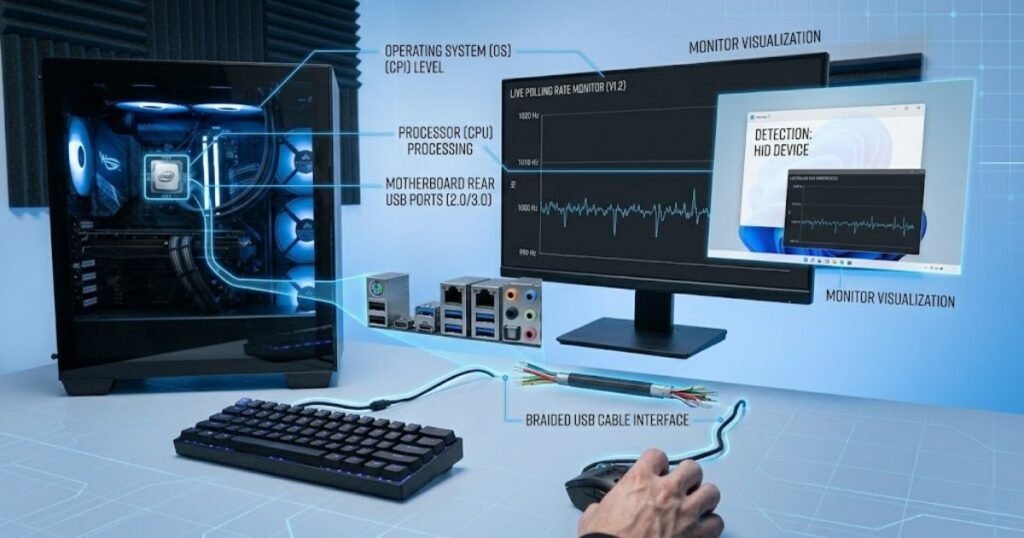
A fluctuating result does not automatically indicate poor performance. The key is identifying whether the variation remains within a normal range or consistently falls well below the configured polling rate across repeated tests.
Hardware factors that affect polling consistency
Your computer hardware plays an important role in how consistently polling reports are processed. Even when the mouse performs correctly, the rest of the system influences the final measurement.
USB controllers, motherboard chipsets, processor scheduling, and the quality of the USB connection all contribute to the timing of incoming mouse reports. High polling rate modes place greater demands on system resources, making stable hardware increasingly important.
Testing the same mouse on another USB port or another computer is often an effective way to determine whether the variation originates from the mouse itself or the surrounding hardware environment.
Software and operating system factors
Background software can temporarily interrupt polling measurements by consuming processor time or delaying input processing.
Applications performing heavy background work, browser extensions, antivirus scans, screen recording software, and operating system tasks may slightly affect reported averages during testing. These influences are generally temporary and become less noticeable when testing is repeated under cleaner conditions.
Closing unnecessary applications before running a polling rate test helps produce more consistent and repeatable results.
Testing mistakes that produce inaccurate results
Many inconsistent polling rate readings are caused by testing technique rather than hardware problems. Following a consistent testing method significantly improves measurement reliability.
The factors below explain the most common testing mistakes:
- Moving too slowly: Small cursor movements generate fewer reports and may reduce measurement accuracy.
- Stopping during the test: Interrupting movement creates irregular sampling intervals.
- Testing for only one second: Very short measurements exaggerate random fluctuations.
- Using inconsistent movement patterns: Smooth circular or figure-eight motions provide more reliable averages.
- Running many background applications: Additional system activity can temporarily influence measured values.
- Repeating only one test: Multiple runs provide a much better indication of your mouse’s actual performance.
Consistent testing procedures make it much easier to separate normal polling rate variation from genuine configuration issues. If your mouse still feels unresponsive despite normal polling rate measurements, you may also want to investigate what causes mouse latency, as input delay can originate from several other parts of the system.
How can you improve polling rate measurement accuracy?
You can improve polling rate measurement accuracy by creating a consistent testing environment, repeating the test multiple times, and eliminating variables that may interfere with mouse reporting. Accurate measurements come from a controlled process rather than a single result.
Even a high-end gaming mouse can produce inconsistent readings if the testing environment changes between measurements. Using the same computer, USB port, mouse pad, and testing method allows you to compare results more reliably after changing polling rate settings or updating firmware.
The image below illustrates an ideal environment for accurate polling rate testing:
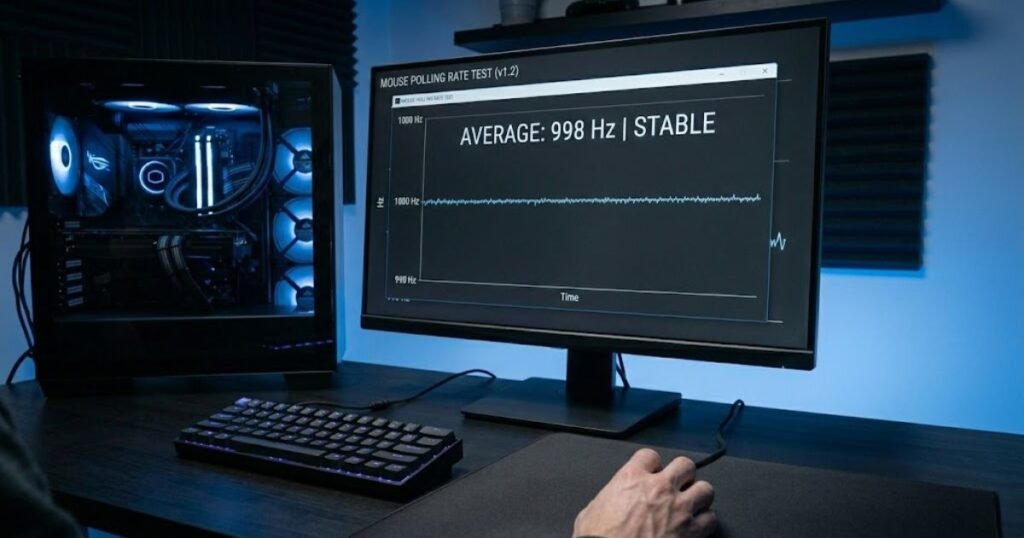
Instead of searching for a perfect number, focus on obtaining repeatable averages under identical conditions. This approach provides a much more realistic picture of your mouse’s performance.
Use the right testing environment
A stable testing environment minimizes external factors that can influence polling rate measurements. Eliminating unnecessary variables helps ensure that the results reflect your mouse instead of your system setup.
Testing should always be performed with the mouse connected directly to the computer whenever possible. Using the same USB port throughout every test also prevents differences caused by changing hardware paths. In addition, selecting a clean, high-quality mouse pad allows the sensor to track movement consistently during the measurement.
Small environmental improvements may seem insignificant individually, but together they produce noticeably more reliable and repeatable polling rate results.
Repeat multiple tests before drawing conclusions
One polling rate test is never enough to evaluate mouse performance accurately. Running several tests under the same conditions produces a more representative average and reduces the influence of random fluctuations.
Instead of reacting to a single unusually low or high reading, perform multiple measurements using the same movement pattern and compare the overall averages. If every test produces similar results, you can be much more confident that the measured polling rate accurately reflects your mouse’s real behavior.
Repeating the test after changing firmware, updating drivers, or selecting a different polling rate also makes it easier to verify whether those changes have had any measurable effect.
Avoid common measurement errors
Following a consistent testing routine helps eliminate many of the mistakes that lead to misleading polling rate measurements. A repeatable process is far more valuable than chasing isolated results.
The following process helps improve measurement accuracy:
- Restart unnecessary background applications: Close software that is not required before beginning the test.
- Use the same USB connection: Keep the mouse connected to the same USB port throughout every measurement.
- Maintain consistent movement: Move the mouse smoothly using circles or figure-eight patterns for the duration of each test.
- Run several measurements: Complete multiple test sessions instead of relying on a single reading.
- Compare average values: Evaluate the overall average rather than focusing on temporary spikes or dips.
Applying the same testing routine every time allows you to compare different polling rate settings, firmware versions, or hardware configurations with much greater confidence.
When should you test your mouse polling rate?
You should test your mouse polling rate whenever a configuration change or performance issue could affect reporting behavior. Regular verification confirms that your mouse is still operating as expected after hardware or software changes.
Polling rate testing is not something that needs to be performed every day. Instead, it becomes valuable after making changes that may influence how your mouse communicates with your computer or when troubleshooting unexpected responsiveness issues.
After changing polling rate settings
Testing immediately after selecting a different polling rate confirms that the new configuration has been successfully applied.
Some gaming mice require profiles to be saved before new settings become active, while others apply changes instantly. Running a quick polling rate test verifies that the configured value is reflected during actual use instead of assuming the software setting has taken effect.
This simple verification step prevents confusion when comparing different polling rate modes during gaming.
After firmware or driver updates
Firmware and driver updates can change how a gaming mouse communicates with the operating system, making post-update verification a useful habit.
Although most updates improve compatibility or stability, confirming the measured polling rate ensures that the device continues to operate correctly after the installation process. Performing a short verification test takes only a few moments and provides additional confidence before returning to competitive play.
Regular verification is especially useful for gaming mice that support very high polling rate modes.
When troubleshooting mouse responsiveness
If your mouse suddenly feels inconsistent, checking the polling rate can help determine whether the problem is related to reporting frequency or another part of your system.
The table below summarizes the most common situations where a polling rate test is recommended:
| Situation | Should You Test? | Reason |
|---|---|---|
| Changed polling rate setting | Yes | Verify the new configuration has been applied. |
| Installed new firmware | Yes | Confirm normal reporting after the update. |
| Updated mouse driver | Yes | Ensure driver changes have not affected reporting. |
| Switched USB ports | Recommended | Compare performance across different connections. |
| Mouse feels inconsistent during gameplay | Recommended | Rule out polling rate as a possible cause. |
| Routine daily use | No | Testing is unnecessary unless something changes. |
Polling rate verification is most valuable after meaningful configuration changes or while diagnosing unexpected mouse behavior. Performing the test only when necessary saves time while still providing reliable confirmation that your mouse is operating correctly.
Frequently Asked Questions About Checking Mouse Polling Rate
The questions below answer some of the most common concerns people have after measuring their mouse polling rate. These FAQs expand on practical situations without repeating the topics already covered in this guide.
How do I check my mouse polling rate without installing software?
You can check your mouse polling rate using a browser-based polling rate tester that measures your mouse’s report frequency while you move the cursor.
For a more reliable average, move your mouse continuously for several seconds and repeat the test multiple times instead of relying on a single measurement.
Which polling rate tester is the most accurate?
No single polling rate tester is universally the most accurate because results also depend on your browser, operating system, and testing method.
Using multiple trusted tools and comparing their average results provides greater confidence than relying on one application alone.
Why doesn’t my mouse stay at exactly 1000 Hz?
Minor fluctuations are normal because mouse reports are processed continuously rather than arriving at perfectly identical intervals.
A stable average close to the configured polling rate is a much better indicator of proper performance than expecting an exact number throughout the test.
Is browser-based polling rate testing accurate enough?
Yes. Browser-based polling rate testers are accurate enough for most users who simply want to verify that their mouse is operating correctly.
If you require more detailed diagnostics, desktop utilities may provide additional information about report consistency.
Can Windows affect polling rate measurements?
Yes. Background processes, USB scheduling, and system workload can slightly influence polling rate measurements during testing.
Closing unnecessary applications before testing usually improves measurement consistency.
Should I test wired and wireless gaming mice differently?
No. The testing process is essentially the same for both wired and wireless gaming mice.
For wireless models, ensure the battery is sufficiently charged and the receiver has a stable connection before beginning the measurement.
How long should a polling rate test last?
Most polling rate tests should last at least five to ten seconds to produce a stable average.
Longer measurements reduce the influence of random fluctuations and make results easier to compare.
Can a USB hub affect polling rate results?
Yes. Some USB hubs may introduce additional variables that influence polling rate consistency.
Connecting your mouse directly to the motherboard is generally recommended when performing performance testing.
Does monitor refresh rate change polling rate measurements?
No. Your monitor’s refresh rate does not change the polling rate reported by your mouse.
Although both affect responsiveness, they measure different aspects of the gaming experience.
Should I close background applications before testing?
Yes. Closing unnecessary software helps reduce interruptions that could temporarily influence polling rate measurements.
A cleaner system environment produces more consistent and repeatable results.
How often should I verify my mouse polling rate?
You only need to verify your polling rate after changing settings, updating firmware, replacing hardware, or troubleshooting unexpected mouse behavior.
Routine daily testing is generally unnecessary once normal operation has been confirmed.
Can a damaged cable or receiver affect polling rate stability?
Yes. A faulty cable, unstable wireless receiver, or poor USB connection may contribute to inconsistent polling rate measurements.
If repeated testing shows unusually low or unstable averages, checking the physical connection is a sensible troubleshooting step.
Conclusion
Checking your mouse polling rate is a simple but valuable way to verify that your gaming mouse is performing as expected. By using a reliable testing method, interpreting the results correctly, and following a consistent testing process, you can quickly confirm whether your mouse is operating normally.
If you’re building or upgrading your setup, the gaming mouse for FPS games pillar covers the core technologies that influence competitive aiming. For players looking for hardware recommendations, our guide to the best gaming mouse for FPS games in 2026 compares today’s leading options for different play styles.
Thank you for reading. I hope this guide helps you measure your mouse polling rate with confidence and get the best performance from your gaming setup.